Documentation
Software Simulators Overview
Section titled “Software Simulators Overview”This chapter describes software simulators that emulate the behavior of:
- Vending Unit
- Washing & Drying machines, Detergent dispensers
- Card Terminal
- Coin acceptors
- Banknote acceptors
- Receipt printer
- other equipments
The simulators allow support teams to test business logic, payment flows, device communication, and user interaction without physical hardware.
Vending Unit Simulator
Section titled “Vending Unit Simulator”The Vending Unit simulator reproduces the real touchscreen interface of the physical kiosk installed on-site. When working with simulators, device settings can be controlled via the backend.
Use the following URL: https://laundry-treysse.maxcrc.de/?kiosk_mode=true to access Vending Unit simulator.
The real Vending Unit operates with a fixed screen resolution of 768 × 1366 px. To accurately simulate the device, the browser should be configured accordingly.
To simulate the real Vending Unit screen:
- Open the URL in Google Chrome.
- Open Developer Tools
- Press
F12 - or
Ctrl + Shift + I
- Press
- Enable Device Toolbar (Responsive Mode)
- Click the device icon in the DevTools toolbar
- or press
Ctrl + Shift + M
- Set the resolution to: Width: 768 px, Height: 1366 px
- Ensure zoom is set to 100%.
- Keep DevTools open while testing.
This configuration reproduces the exact screen size of the physical Vending Unit.
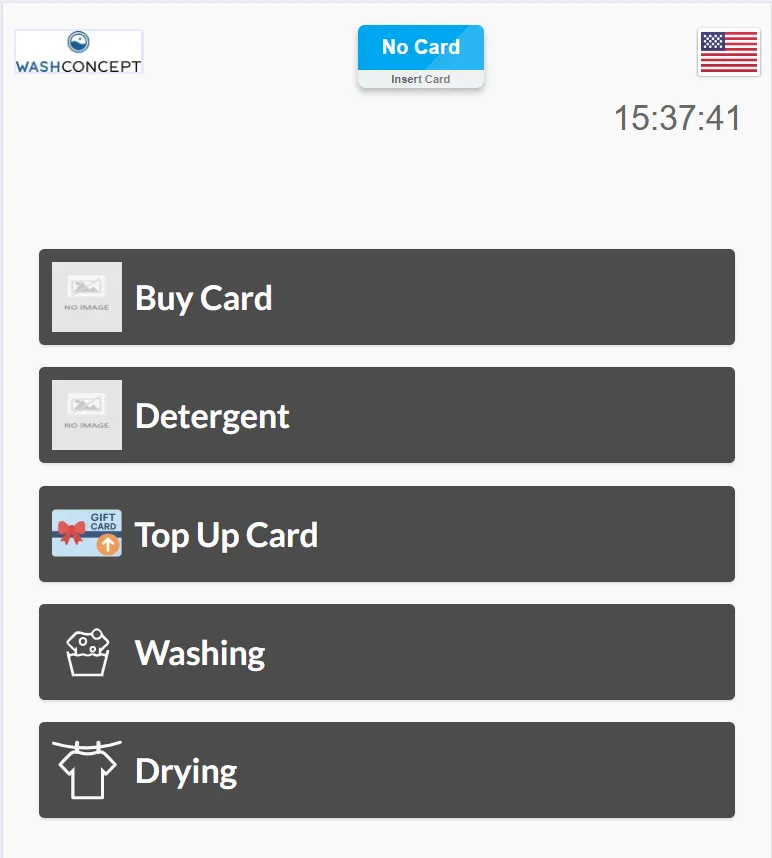
The main screen displays:
- System logo (top left)
- Card status indicator (e.g. “No Card / Insert Card”)
- Language selector
- Current time
- Main action buttons:
- Buy Card
- Detergent
- Top Up Card
- Washing
- Drying
These buttons represent the core services available on the Vending Unit.
It’s used to:
- Test customer interaction flows
- Validate card purchase and top-up logic
- Simulate washing and drying program selection
- Verify backend communication
- Test payment scenarios (coins, banknotes, card)
- Validate receipt generation logic
Machine Simulation User Dashboard
Section titled “Machine Simulation User Dashboard”This page provides a centralized interface for simulating the behavior of all machines connected to a specific Vending Unit (e.g., TRE01).
Use the following URL: https://service-treysse.maxcrc.de/TRE01/machineservice/user-dashboard to access Machine Simulation User Dashboard.
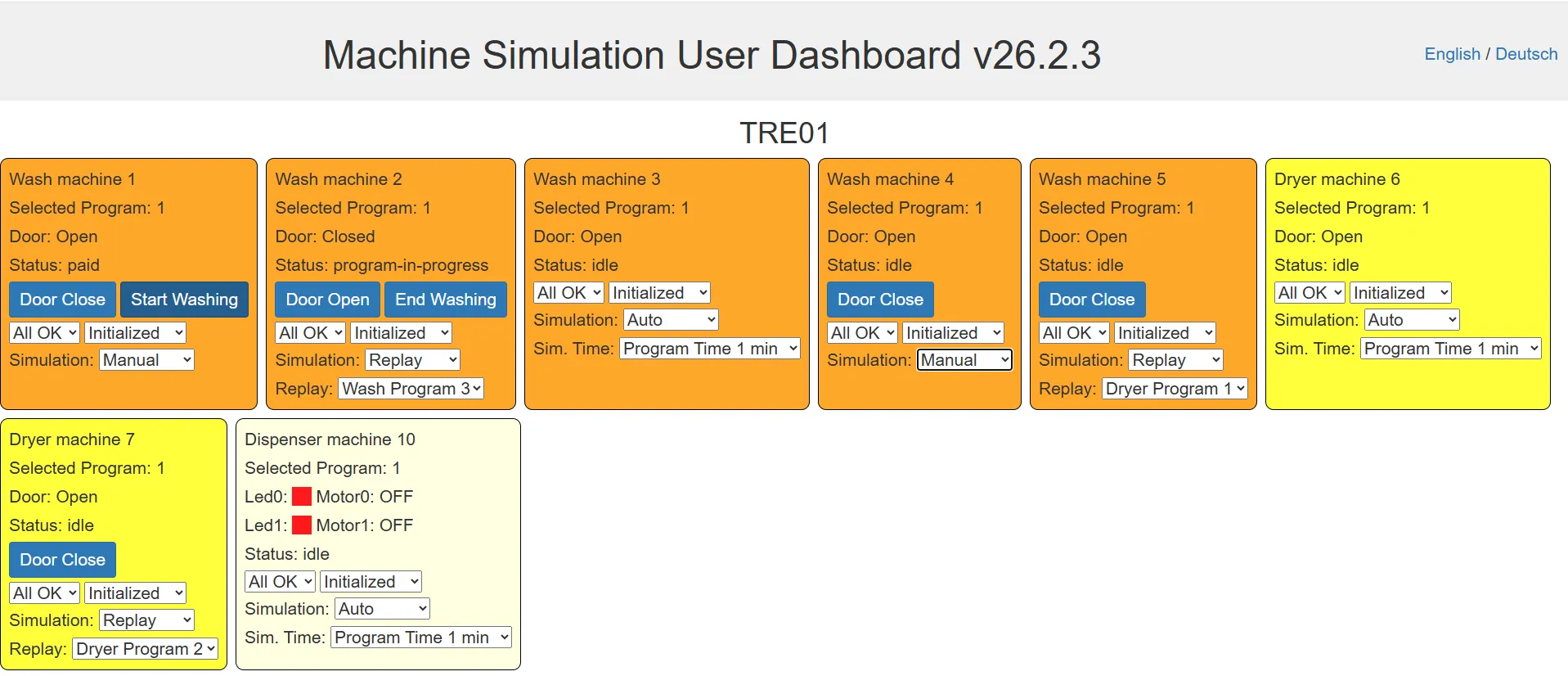
This dashboard allows developers, QA engineers, and service teams to:
- Simulate washing machines
- Simulate dryers
- Simulate detergent dispensers
- Control machine states
- Inject error scenarios
- Replay real machine programs
- Test backend interaction logic
Each machine is displayed as a separate control panel containing its current state and simulation controls.
Machine Panels
Section titled “Machine Panels”Each panel represents one physical device:
- Wash machine
- Dryer machine
- Dispenser machine
Each panel displays:
- Selected Program – Currently selected program number
- Door status – Open / Closed
- Machine status – idle, paid, program-in-progress, etc.
- Control buttons (e.g., Door Close, Start Washing, End Washing)
- Simulation configuration controls
Each machine panel contains several simulation parameters.
Simulation Mode
Section titled “Simulation Mode”The Simulation dropdown allows selecting the simulation behavior:
Auto- Automatic simulation of device operation. The machine runs automaticallyManual- Manual device control mode. User controls actions manually (door open/close, start/stop). Useful for step-by-step testingReplay- Replays a predefined machine program in real time. The program selected in the Replay dropdown below is executed (e.g. Wash Program 3). Simulates realistic behavior including state changes and event timing
Operational Status Selector
Section titled “Operational Status Selector”Dropdown values:
- All OK - Simulates normal machine operation
- Error 1 - Simulates the first predefined error condition
- Error 2 - Simulates the second predefined error condition.
Communication / Initialization State
Section titled “Communication / Initialization State”Dropdown values:
- Initialized - Machine is fully connected and operational
- Initializing - Machine is currently booting or reconnecting
- No Answer - Machine does not respond (communication failure simulation)
Service Simulation Page
Section titled “Service Simulation Page”This page provides low-level control over all machines connected to the Vending Unit (e.g., location TRE01).
Use the following URL: https://service-treysse.maxcrc.de/TRE01/machineservice to access Service Simulation Page.
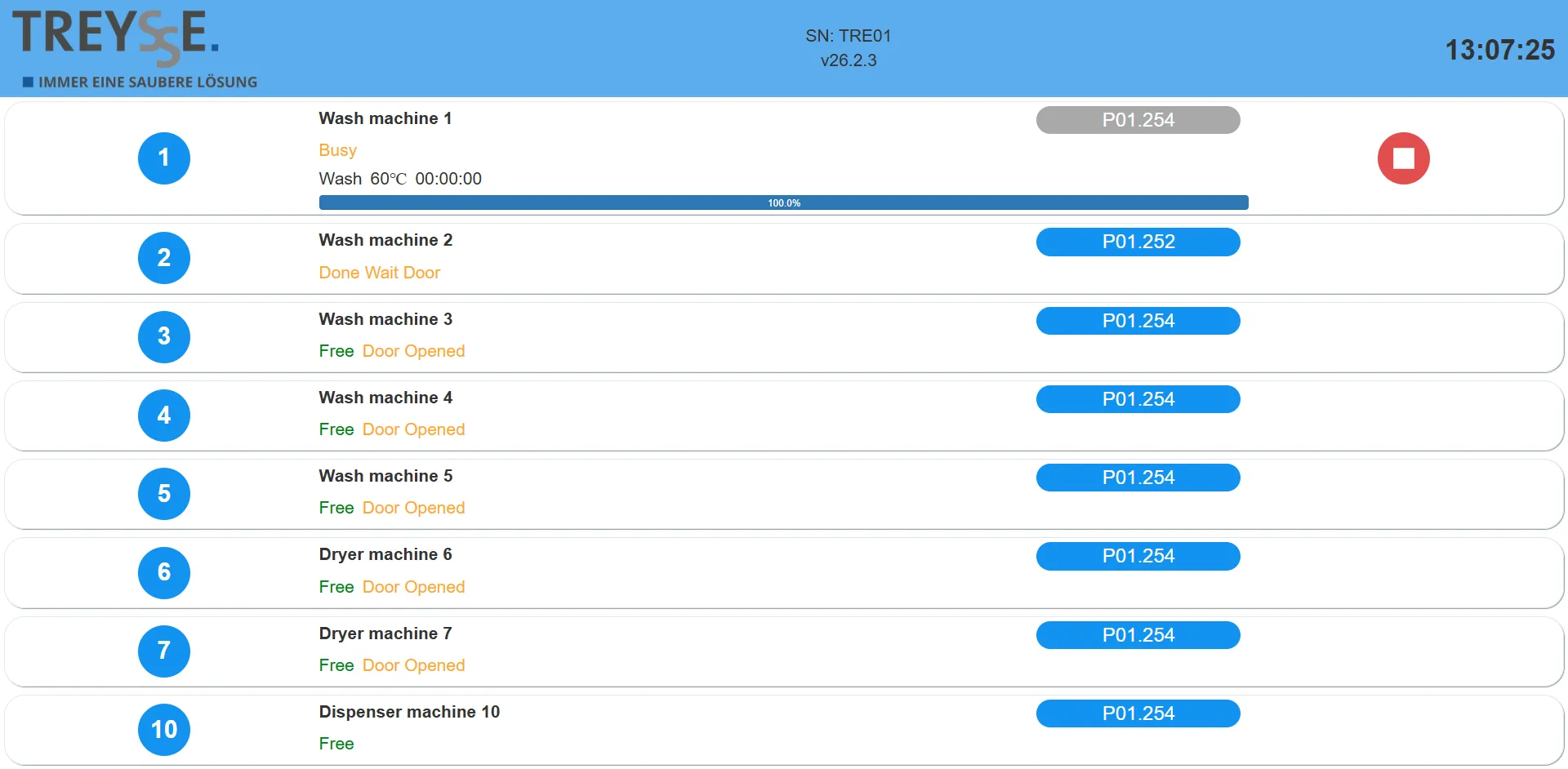
This is used to:
- Monitor machine status in real time
- View active program details
- See program runtime
- Force-stop any running task
- Verify state transitions
- Simulate service interventions
- Diagnose machine behavior
It represents a low-level device control layer.
Machine List
Section titled “Machine List”Each machine is displayed as a separate horizontal block.
Each row contains:
- Machine number (left circle)
- Machine name
- Machine status
- Program information (if running)
- Program ID (e.g.,
P01.254) - Control button (Stop task)
Machine States
Section titled “Machine States”The interface displays real-time machine states, such as:
- Free – Machine is available
- Busy – Program is currently running
- Done Wait Door – Program finished, waiting for door interaction
- Door Opened – Door is open
- Other internal states
Color coding helps quickly identify status:
- Green → Free / Available
- Orange → Attention state
- Busy → Active execution
Active Program Information
Section titled “Active Program Information”When a program is running, the following information is shown:
- Program name (e.g.,
Wash 60°C) - Elapsed time (e.g.,
00:00:00) - Progress bar (percentage)
- Program ID (e.g.,
P01.254)
Stop Program (Force Stop)
Section titled “Stop Program (Force Stop)”If a machine is running a task, a red stop button is displayed on the right side of the machine row.
- Immediately stops the active program
- Forces the machine into a stopped/idle state
- Simulates service interruption
- Triggers appropriate backend events
Card Terminal Device Simulator
Section titled “Card Terminal Device Simulator”This page emulates the behavior of the physical card payment terminal connected to the Vending Unit.
Use the following URL: https://service-treysse.maxcrc.de/TRE01/cardterminal/simulator to access Card Terminal Simulator.
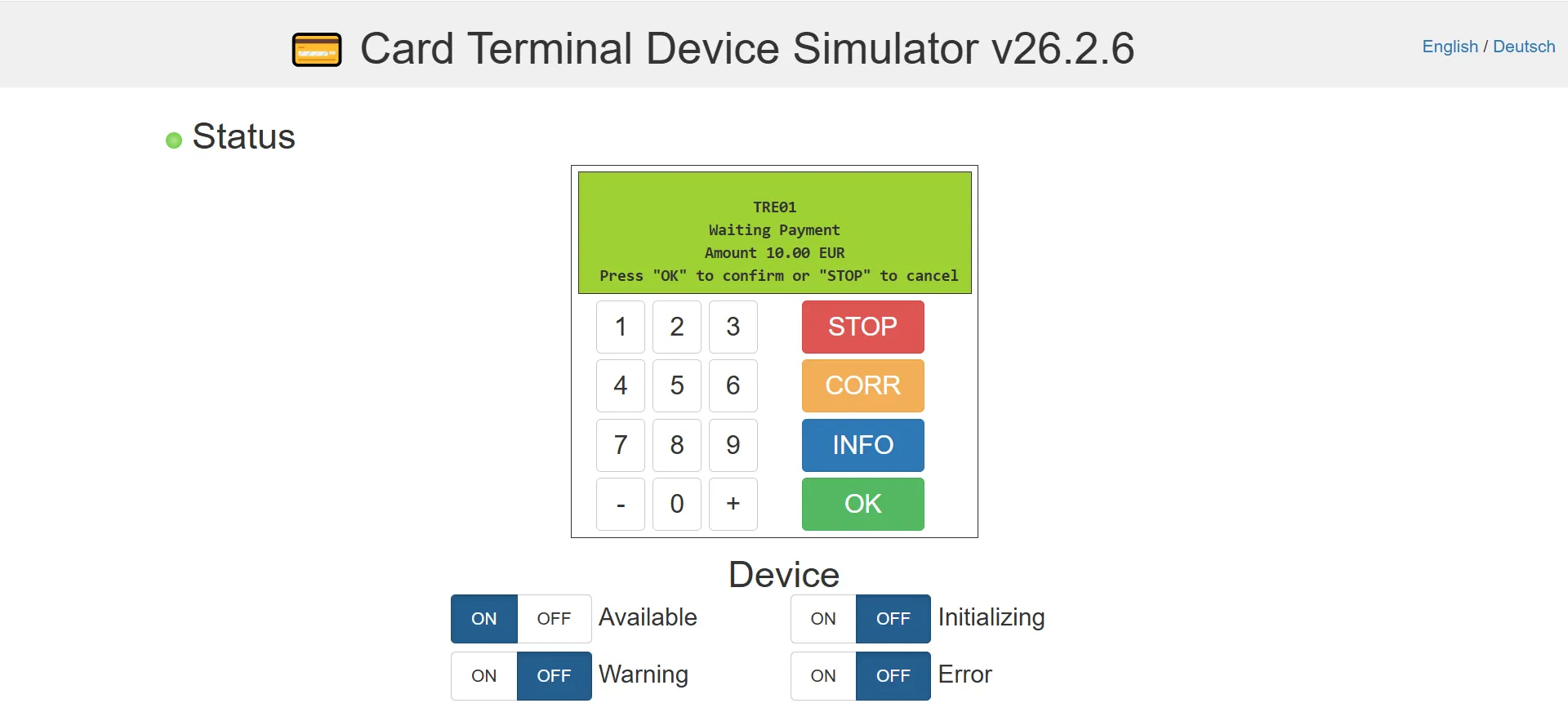
This simulator is used for:
- Testing card payment workflows
- Validating transaction handling
- Simulating terminal availability states
- Injecting warnings and errors
- Verifying backend-terminal communication
- QA and integration testing
It reproduces the keypad interface, display output, and device state management of the real card terminal hardware.
Terminal Interface Simulation
Section titled “Terminal Interface Simulation”The central section visually represents the physical card terminal.
It includes:
- Terminal display screen
- Numeric keypad (0–9)
- Functional buttons:
- STOP
- CORR (Correction)
- INFO
- OK (Confirm)
Display Area
Section titled “Display Area”The display area shows the current terminal message.
Example: Waiting Payment. Amount 10.00 EUR. Press "OK" to confirm or "STOP" to cancel
Coin Acceptor Simulator
Section titled “Coin Acceptor Simulator”This simulator emulates the behavior of the physical coin acceptor device connected to the Vending Unit.
Use the following URL: https://service-treysse.maxcrc.de/TRE01/cashpaymentservice/simulation/coin-acceptor/serial_cctalk_dev_ttyUSB0_2 to access Coin Acceptor Simulator.
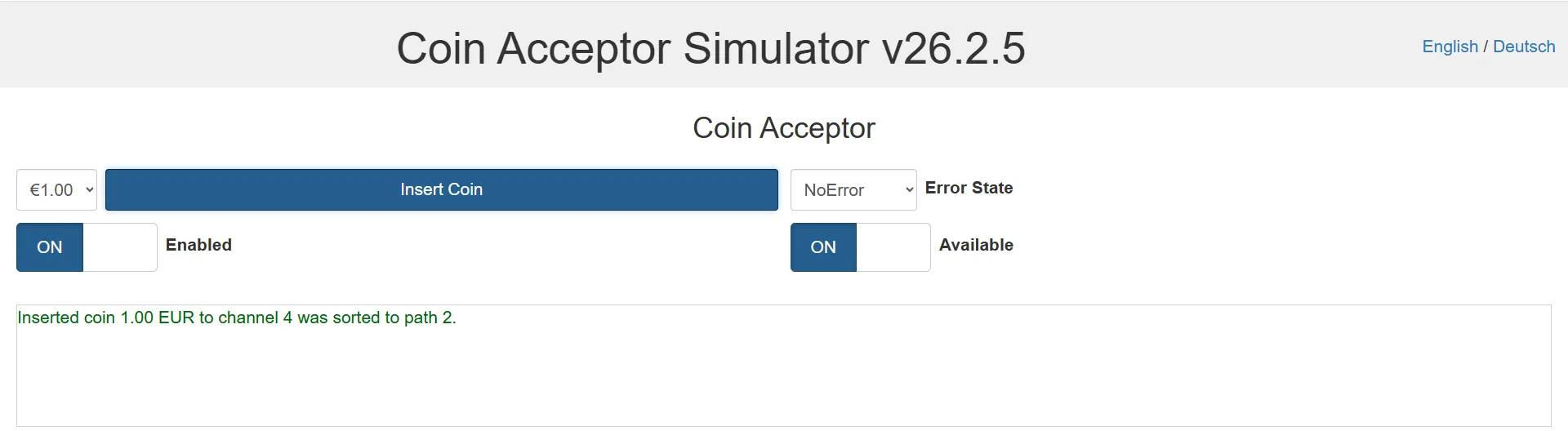
This simulator allows developers, QA engineers, and service personnel to:
- Simulate coin insertion
- Test coin routing logic
- Trigger error states
- Control device availability
- Validate backend integration
- Verify sorting and payout paths
It reproduces the core logic of a real coin acceptor, including denomination selection, channel mapping, and sorting paths.
Denomination Selector
Section titled “Denomination Selector”A dropdown menu allows selecting the coin denomination to insert.
Example:
- €1.00
- €0.50
- €2.00
This defines which coin value will be simulated.
Insert Coin Button
Section titled “Insert Coin Button”The Insert Coin button simulates inserting the selected coin into the acceptor.
When pressed:
- The coin is processed by the simulated validator
- The coin is assigned to a channel
- The routing logic determines the sorting path
- An event is generated
After coin insertion, the system displays a log message such as: Inserted coin 1.00 EUR to channel 4 was sorted to path 2.
Banknote Acceptor Simulator
Section titled “Banknote Acceptor Simulator”This simulator emulates the behavior of a physical banknote validator connected to the Vending Unit.
Use the following URL: https://service-treysse.maxcrc.de/TRE01/cashpaymentservice/simulation/banknote-acceptor/serial_ssp_dev_ccTalk_40 to access Banknote Acceptor Simulator.
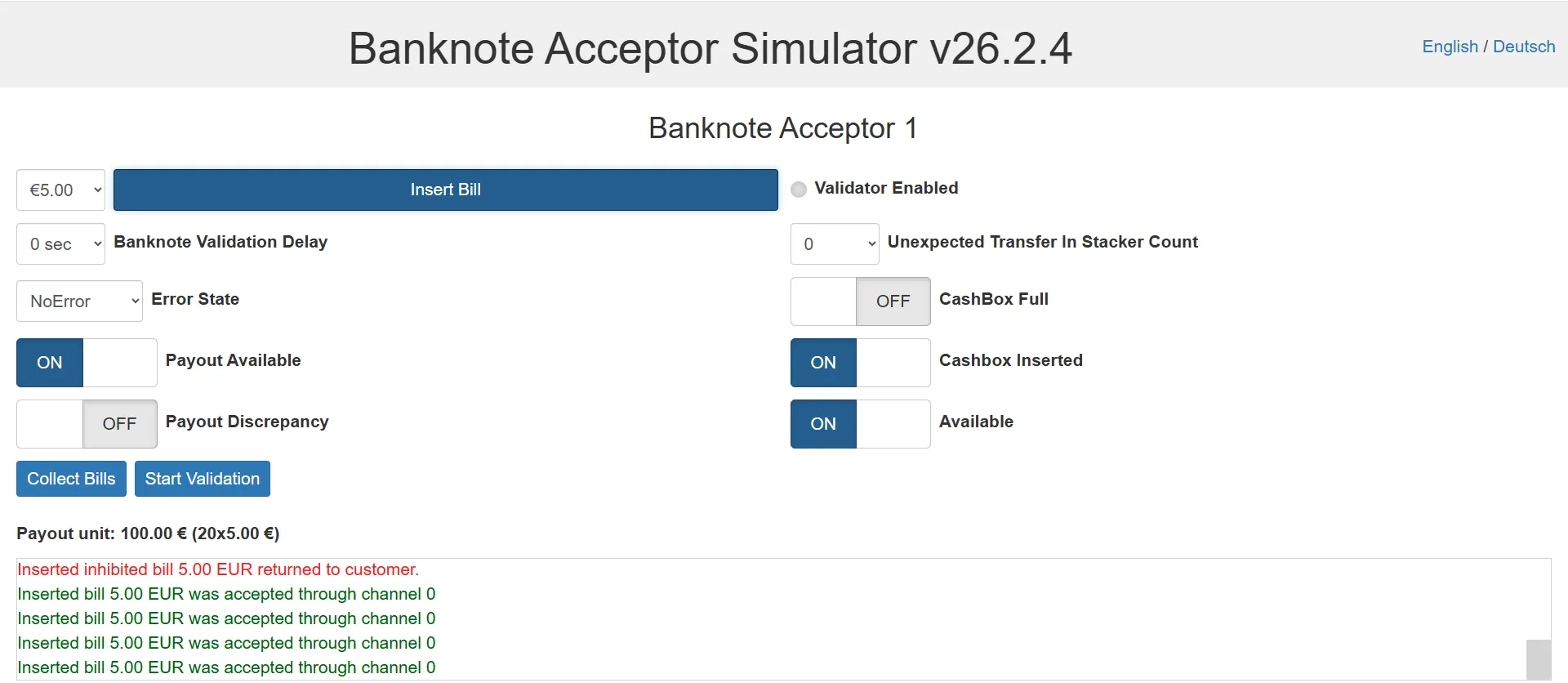
This simulator is used for:
- Testing banknote insertion and validation
- Simulating acceptance and rejection scenarios
- Injecting hardware errors
- Testing payout logic
- Simulating cashbox conditions
- Validating backend integration
- QA and service troubleshooting
It reproduces the internal workflow of a real banknote acceptor, including validation, channel mapping, payout, etc.
Page Structure
Section titled “Page Structure”The page contains the following sections:
- Banknote insertion controls
- Validation configuration
- Error and device state controls
- Payout unit controls
- Event log output
Denomination Selector
Section titled “Denomination Selector”A dropdown menu allows selecting the banknote value to insert.
Example:
- €5.00
- €10.00
- €20.00
Insert Bill Button
Section titled “Insert Bill Button”The Insert Bill button simulates inserting the selected banknote into the validator.
Printer Simulator
Section titled “Printer Simulator”This simulator emulates the receipt printer integrated into the Vending Unit.
Use the following URL: https://service-treysse.maxcrc.de/TRE01/printerservice/simulator to access Printer Simulator.
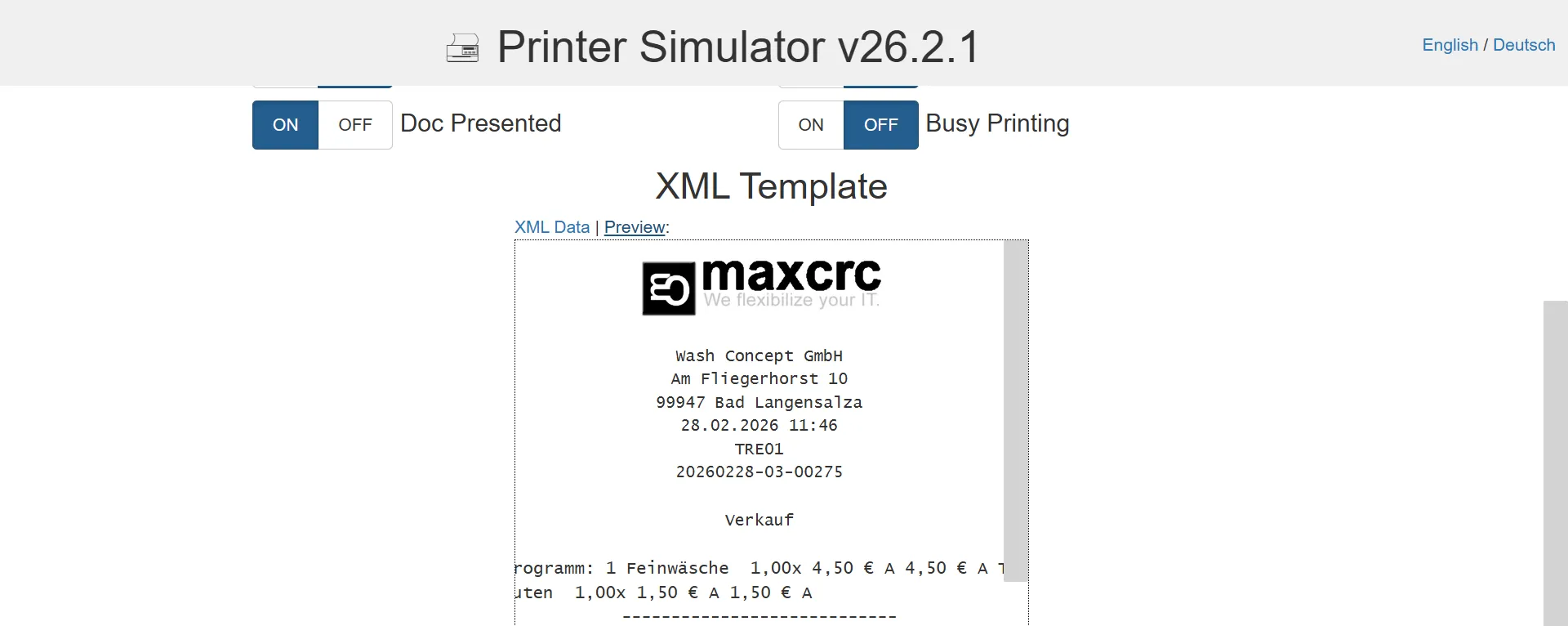
It allows to:
- Test receipt printing workflows
- Simulate printer hardware states
- Validate XML receipt templates
- Reproduce printing delays and busy states
- Verify backend-to-printer communication
- Debug receipt formatting and output
It replicates the behavior of a physical thermal receipt printer used for transaction confirmations.