Documentation
Smart Hopper Management
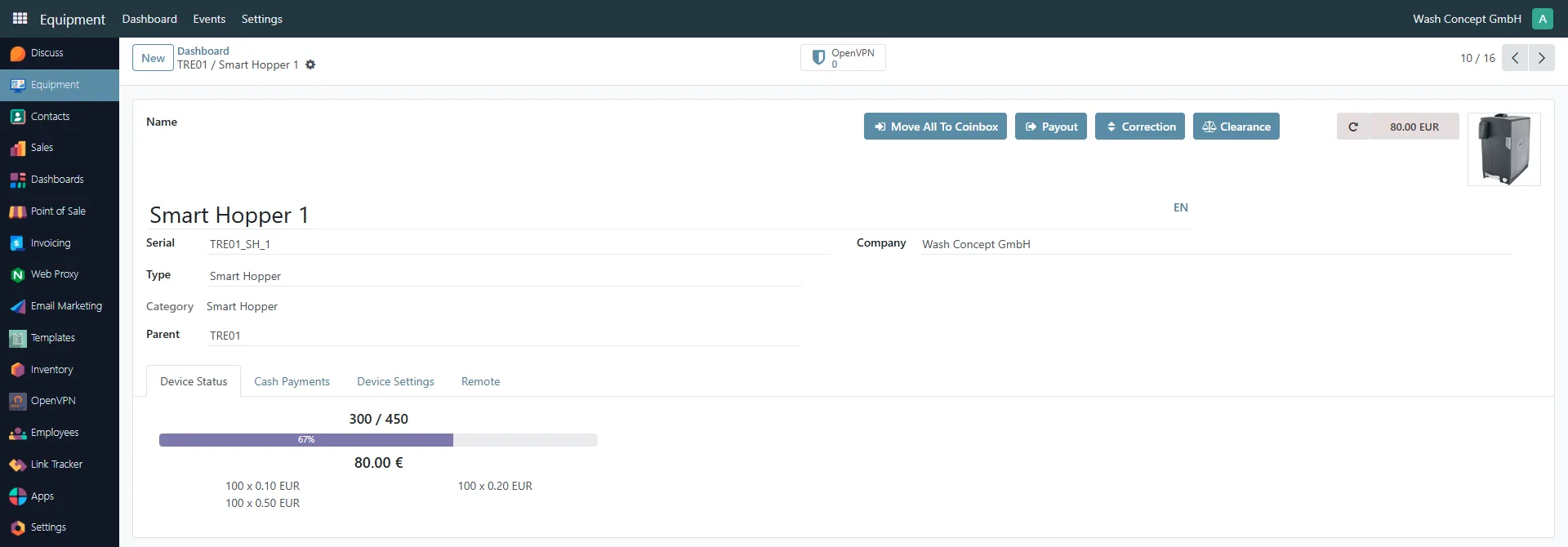
Section titled “Smart Hopper Management”The Smart Hopper Management page is used to monitor, manage, and control an individual Smart Hopper device connected to a Vending Unit.
A Smart Hopper is responsible for coin storage, change handling, and payout operations.
This page provides real-time information about coin levels, total stored amount, and operational status.
You can access this page from the Equipment Items list or from the Devices Page overview of a vending unit.
Page Purpose
Section titled “Page Purpose”This page allows operators and service personnel to:
- Monitor the current fill level of the hopper
- View total stored cash amount
- Review coin denomination breakdown
- Perform payout and maintenance operations
- Manage coin transfers to coinbox
Header Information
Section titled “Header Information”The top section displays the main identification data:
- Name — device name (e.g. Smart Hopper 1)
- Serial — unique serial identifier (e.g.
TRE01_SH_1) - Type — equipment type (Smart Hopper)
- Category — equipment category
- Parent — Vending Unit controlling the hopper (e.g.
TRE01) - Company — owning company
On the right side, the Latest Event (Operation) Sum is displayed (e.g. 36.80 EUR). It`s clicable - navigate to Hopper Event List. Here it is Refresh Latest Event button.
Device Status Tab
Section titled “Device Status Tab”This tab provides a visual overview of the hopper’s condition:
- Capacity Indicator — displays current fill level
(e.g.300 / 450with percentage bar) - Fill Percentage — visual progress bar (e.g.
67%) - Total Amount Stored — total monetary value inside the hopper (e.g.
80.00 €) - Denomination Breakdown — quantity per coin value
(e.g.100 x 0.20 EUR,100 x 0.50 EUR,100 x 0.10 EUR)
This section allows quick evaluation of whether refilling or emptying is required.
Additional Tabs
Section titled “Additional Tabs”The following tabs are available on the page:
- Cash Payments — payment-related settings and data
- Device Settings — configuration parameters
- Remote — remote access and connectivity options
Action Buttons
Section titled “Action Buttons”At the top-right of the page, operational buttons are available:
- Move All To Coinbox — transfers all coins from the hopper to the coinbox
- Payout — triggers a payout operation
- Correction — performs a manual balance correction
- Clearance — transfer excess coins from the Smart Hopper to the Coinbox
⚠️ These actions directly affect the physical cash inside the device and should only be performed by authorized personnel.
Below we will look at the purpose of these tabs and buttons.
Cash Payments Tab
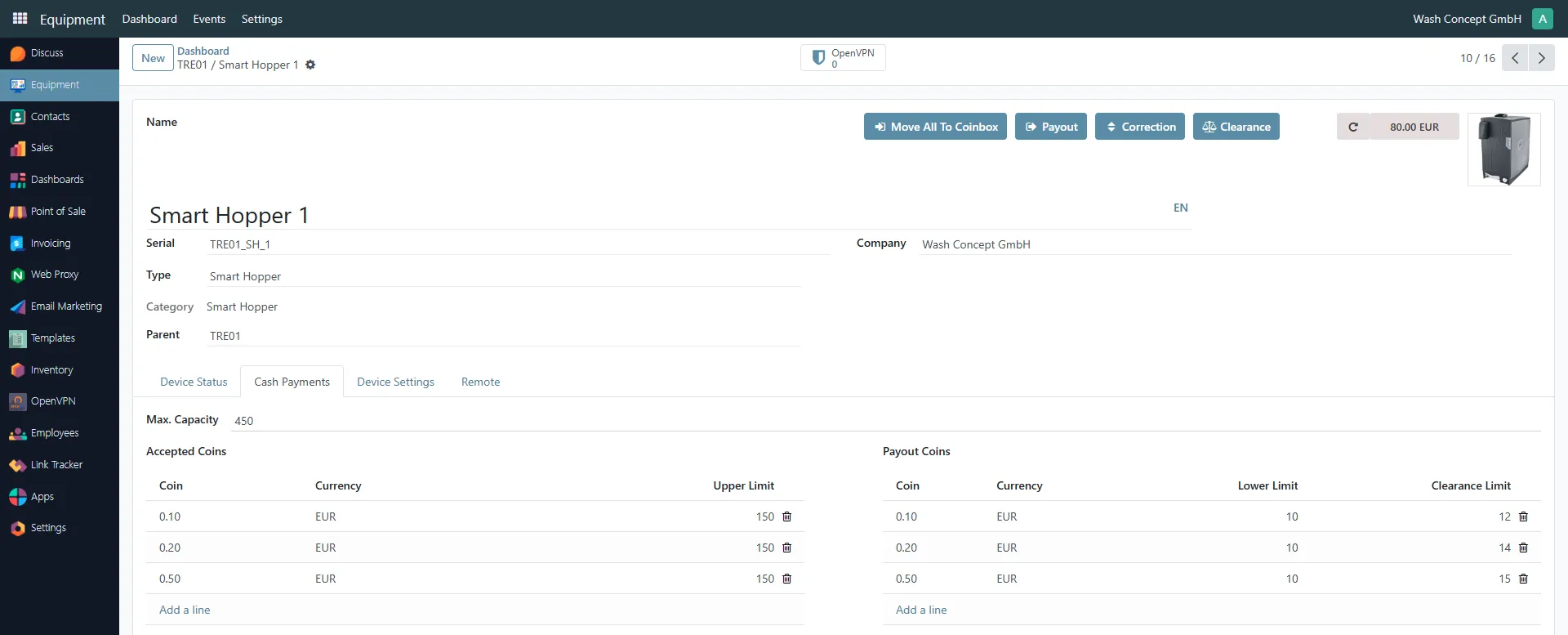
Section titled “Cash Payments Tab”The Cash Payments tab is used to configure how the Smart Hopper handles accepted coins and payout logic.
It defines capacity limits, coin denominations, and operational thresholds for change management.
This tab is essential for ensuring correct cash handling and preventing overflow or change shortages.
Maximum Capacity
Section titled “Maximum Capacity”- Max. Capacity — defines the total number of coins the hopper can store
(e.g.450coins)
This value is used to calculate fill percentage and to prevent overfilling.
Accepted Coins
Section titled “Accepted Coins”The Accepted Coins section defines which coin denominations the hopper accepts and stores.
Each line contains:
- Coin — coin denomination (e.g.
0.10,0.20,0.50) - Currency — currency type (e.g.
EUR) - Upper Limit — maximum number of coins of this denomination allowed in the hopper
You can:
- Add new denominations using Add a line
- Remove a denomination using the delete icon
Payout Coins
Section titled “Payout Coins”The Payout Coins section defines which coins are used for change payout and sets operational thresholds.
Each line includes:
- Coin — coin denomination
- Currency — currency type
- Lower Limit — minimum number of coins required to allow payouts
- Clearance Limit — target coin level after a clearance operation
Lower Limit
Section titled “Lower Limit”The Lower Limit protects the machine from running out of change.
If the number of coins falls below this value:
- The system may block certain payment methods
- The machine may prevent transactions requiring change
Clearance Limit
Section titled “Clearance Limit”The Clearance Limit defines how many coins of that denomination should remain after performing a clearance operation.
This ensures:
- Controlled emptying of the hopper
- Balanced coin distribution
- Efficient collection procedures
Move All To Coinbox Button
Section titled “Move All To Coinbox Button”Transfers all coins from the hopper to the Coinbox
Payout Button
Section titled “Payout Button”The Payout button allows authorized personnel to manually dispense coins from the Smart Hopper.
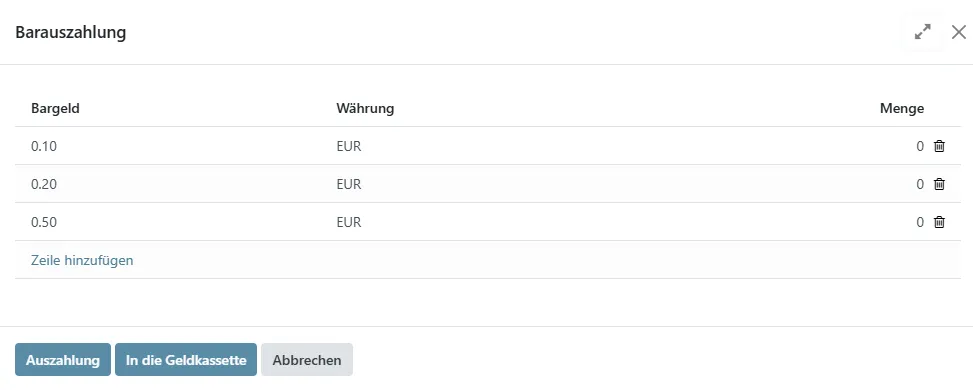
When the button is pressed, a Payout Cash dialog window opens, allowing the operator to specify the exact number of coins to be dispensed for each denomination.
Payout Cash Dialog
Section titled “Payout Cash Dialog”The dialog contains the following columns:
- Cash — coin denomination (e.g.
0.10,0.20,0.50) - Currency — currency type (e.g.
EUR) - Quantity — number of coins to be dispensed
You can:
- Manually enter the quantity for each denomination
- Add additional lines if needed
- Remove denominations using the delete icon
Available Actions in the Dialog
Section titled “Available Actions in the Dialog”At the bottom of the window, the following buttons are available:
-
Payout — executes the payout operation
The specified number of coins will be physically dispensed from the hopper. -
To Cashbox — transfers the selected coin quantities to the coinbox instead of dispensing them.
-
Cancel — closes the dialog without performing any action.
Correction Button
Section titled “Correction Button”The Correction button is used to adjust the internal coin balance of the Smart Hopper without performing a physical payout.
This function is typically used when the actual number of coins inside the hopper differs from the amount recorded in the system.
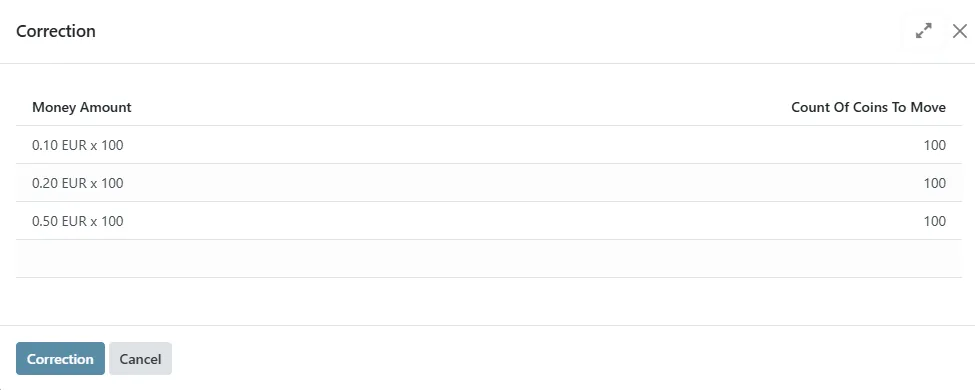
When the button is pressed, a Correction dialog window opens.
Correction Dialog
Section titled “Correction Dialog”The dialog displays a list of available coin denominations and their current registered quantities.
Columns
Section titled “Columns”- Money Amount — coin denomination and current registered quantity
(e.g.0.10 EUR x 100) - Count Of Coins To Move — editable field where you enter the number of coins to adjust
Each denomination can be corrected individually.
How Correction Works
Section titled “How Correction Works”The operator manually enters the number of coins.
After confirmation:
- The system updates the internal coin counters
- The new balance is reflected on the Smart Hopper main page
- No physical payout is triggered
This operation adjusts accounting values only.
Available Actions
Section titled “Available Actions”At the bottom of the dialog:
- Correction — confirms and applies the balance adjustment
- Cancel — closes the window without saving changes
Important Notes
Section titled “Important Notes”- Correction does not dispense coins.
- It directly changes the stored coin balance in the system.
- This operation should only be performed by authorized service personnel.
- Incorrect corrections may result in accounting inconsistencies.
Clearance Button
Section titled “Clearance Button”The Clearance button is used to transfer excess coins from the Smart Hopper to the Coinbox. This function works similarly to Move All To Coinbox, but with one important difference:
Clearance only moves coins that exceed the configured denomination limits.
When the Clearance button is pressed, a dialog window opens displaying:
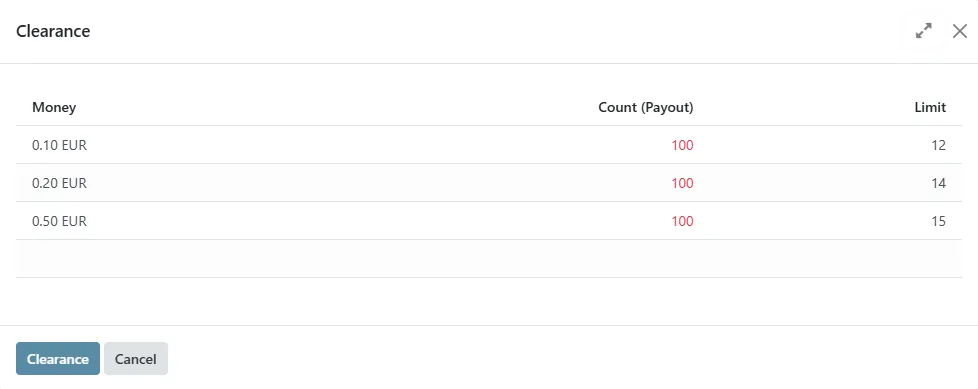
- Money — coin denomination (e.g. 0.10 EUR, 0.20 EUR, 0.50 EUR)
- Count (Payout) — number of coins that will be moved to the Coinbox
- Limit — configured clearance limit for that denomination
The system automatically calculates how many coins exceed the defined limit.
Example logic:
- If the current quantity of 0.10 EUR coins is 100
- And the configured clearance limit is 12
- The system prepares 100 − 12 = 88 coins for transfer to the Coinbox
Only the excess amount is moved.
Clearance keeps a predefined reserve of coins inside the hopper for change operations.