Documentation
Washing Machine Configuration
Section titled “Washing Machine Configuration”This page describes the configuration and monitoring interface for an individual washing machine. You can access this page by selecting a washing machine from the Equipment Items list or from the Devices Page overview of a vending unit.
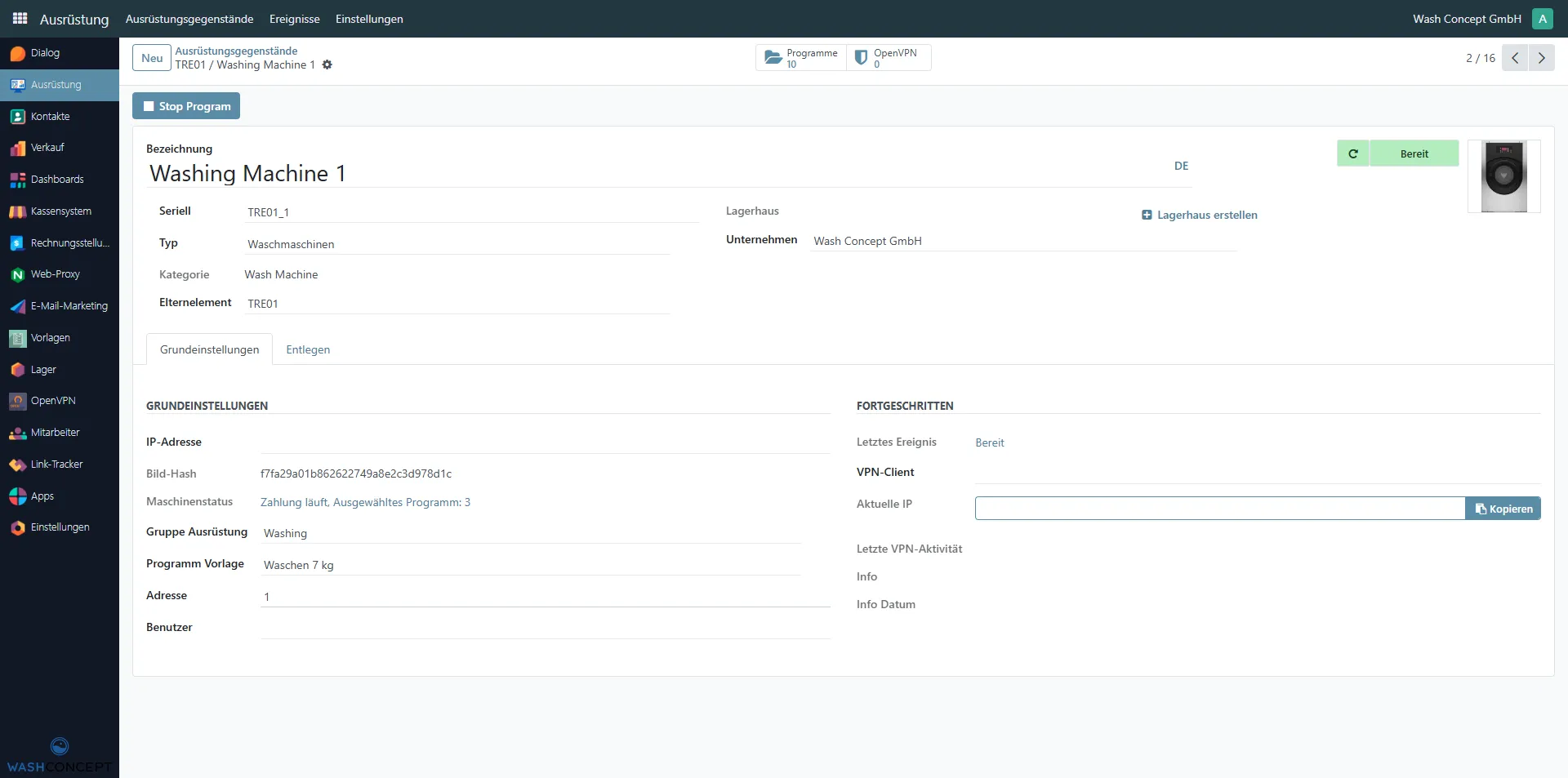
Page Overview
Section titled “Page Overview”The Washing Machine Form View provides:
- General machine identification
- Company and warehouse assignment
- Basic network and program configuration
- Operational status and last events
- Direct service actions
Header Information
Section titled “Header Information”The top section contains the main identification fields and quick actions:
- Name — washing machine name (e.g.
Washing Machine 1) - Serial — unique serial identifier (e.g.
TRE01_1) - Type — equipment type (e.g.
Wash Machines). You can navigate to the equipment type directory and change the machine type - Category — equipment category (e.g.
Wash Machin) - Parent — Vending Unit that controls this machine (e.g.
TRE01). You can select the Vending Unit - Company — owning company (e.g.
Wash Concept GmbH) - Warehouse — Defines the physical or logical location of the machine
Header Actions
Section titled “Header Actions”- Status Indicator
- Displays Latest Event (is clicable - navigate to Machine Event List) and Refresh Latest Event button
- Machine Image
- Visual reference of the equipment
- Stop Program Button (if available)
- Stops current machine program Select Program Button
- Changes current machine program
The form contains multiple tabs for configuration and technical details.
General Settings Tab
Section titled “General Settings Tab”This tab contains the core configuration parameters required for normal operation.
Fields
Section titled “Fields”-
IP Address
- Network address of the washing machine controller
-
Equipment Group
- Example:
Washing - Used to include the machine in a group of equipment defined by a specific Vending Unit
- Example:
-
Program Template
- Example:
Washing 7 kg - Defines the default program configuration (Program Template) available on the machine
- Example:
-
Address
- Internal device address or node identifier
-
User
- Assigned system user (if applicable)
Advanced Information Section
Section titled “Advanced Information Section”This section provides operational and diagnostic information.
Fields
Section titled “Fields”-
Last Event
- Example:
Door opened - Displays the most recent registered event
- Example:
-
Last VPN Activity
- Indicates the latest VPN communication (if OpenVPN is used)
-
Info
- Additional system or diagnostic information
This section is primarily used for troubleshooting and service diagnostics.
Related Actions
Section titled “Related Actions”At the top of the form, related actions are accessible via smart buttons.
Available Links
Section titled “Available Links”-
Programs
- Displays Machine Programs assigned to this machine
-
OpenVPN
- Shows VPN configuration and connection status
Typical Configuration Workflow
Section titled “Typical Configuration Workflow”Service personnel usually perform the following steps on this page:
- Verify machine identity (name, serial, location)
- Check company and warehouse assignment
- Configure IP address and equipment group
- Assign or verify program template
- Review last events
- Perform service actions (e.g. select the program)
- Save and validate changes