Printer Configuration
The Printer is a thermal receipt printer integrated into the Vending Unit. It is used for printing receipts, transaction confirmations, and service information for end users.
Creating a Printer Device
Section titled “Creating a Printer Device”To add a printer in the system:
- Go to the Equipment section.
- Click the New button.
- In the Type field, select Printer.
- Enter the device name.
- Optionally, upload an image of the device.
- Click Save.
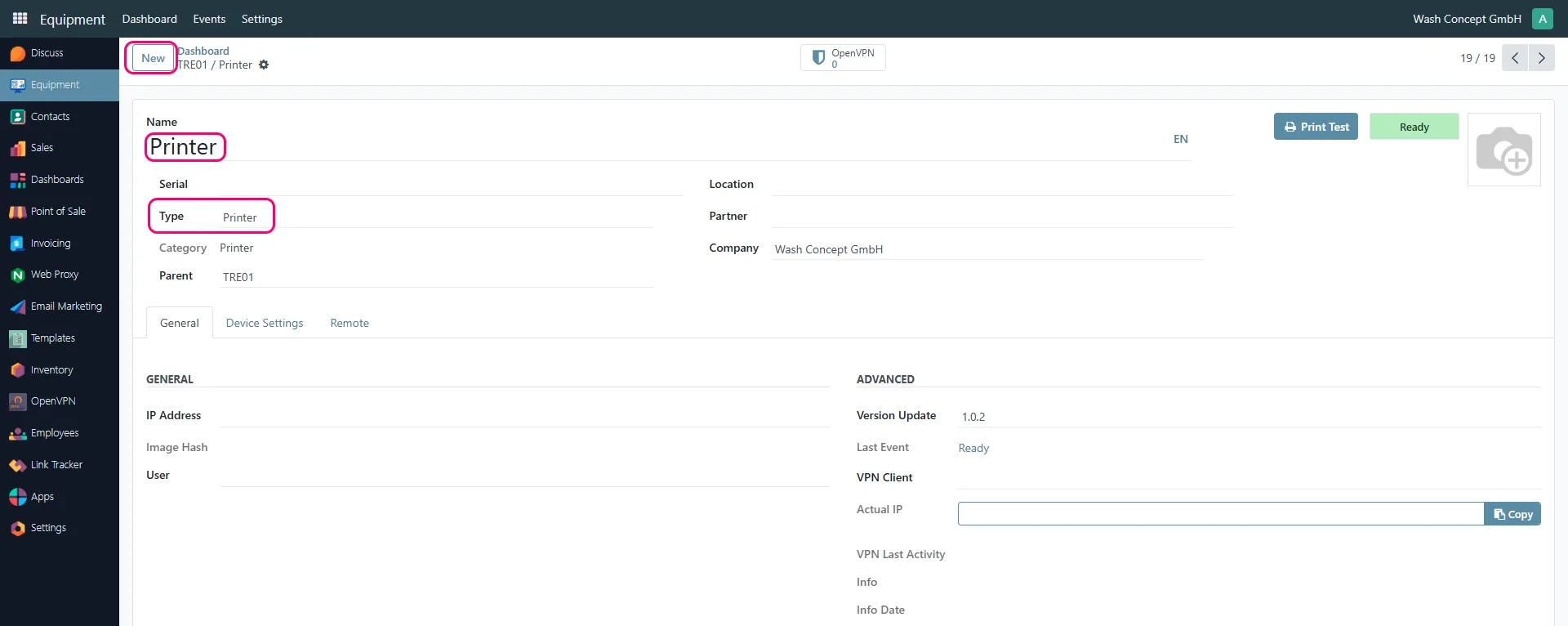
After saving, the printer will be linked to the selected parent equipment (e.g., Vending Unit).
Device Limit Configuration
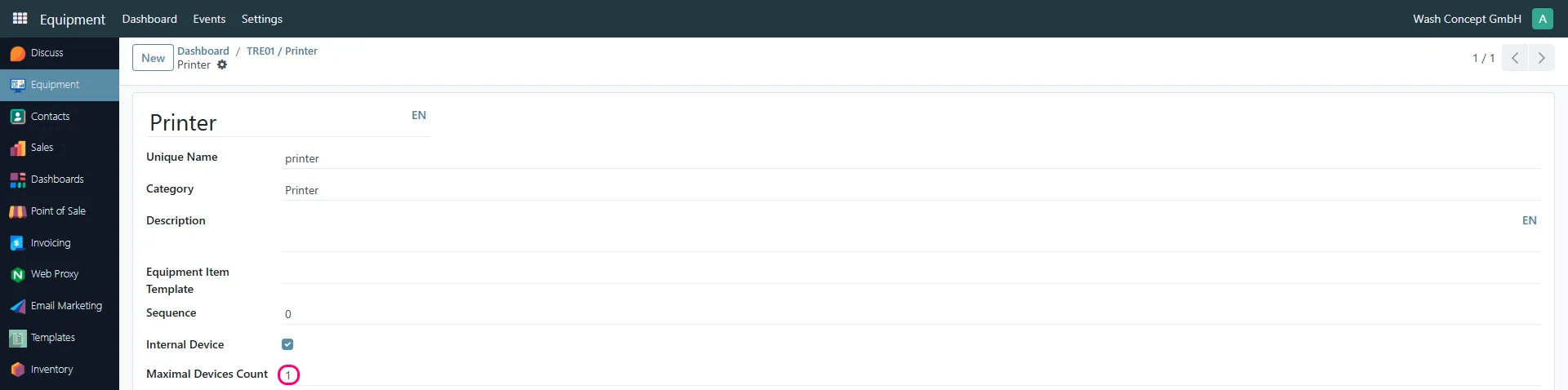
Section titled “Device Limit Configuration”By default, the system allows creating only one Printer device per equipment type.
To change this limit:
- Open the Printer equipment type configuration
- Find the field:
- Maximal Devices Count
- Set the required number of devices
- Save changes
Device Monitoring
Section titled “Device Monitoring”From the printer card, you can monitor its operation:
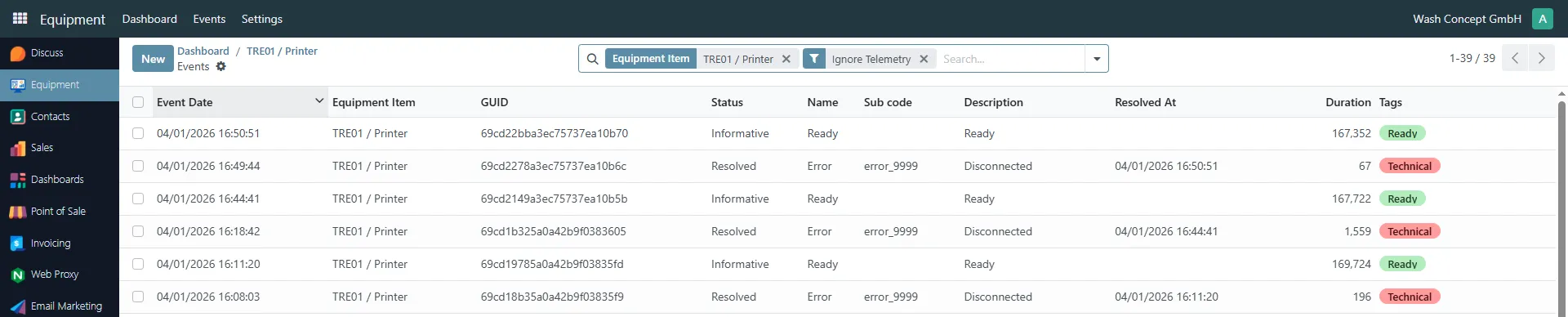
- Click the Events button (located near the device image).
- You will be redirected to the Events page, where you can view:
- Device status (Ready, Error, etc.)
- Error codes (e.g., Out of paper, Disconnected)
- Event timestamps
- Duration and tags
This allows tracking printer health and troubleshooting issues.
Test Print
Section titled “Test Print”The printer supports a test print function:
- Open the printer card.
- Click the Print Test button.
A sample receipt will be printed, allowing verification of:
- Paper availability
- Print quality
- Alignment and formatting
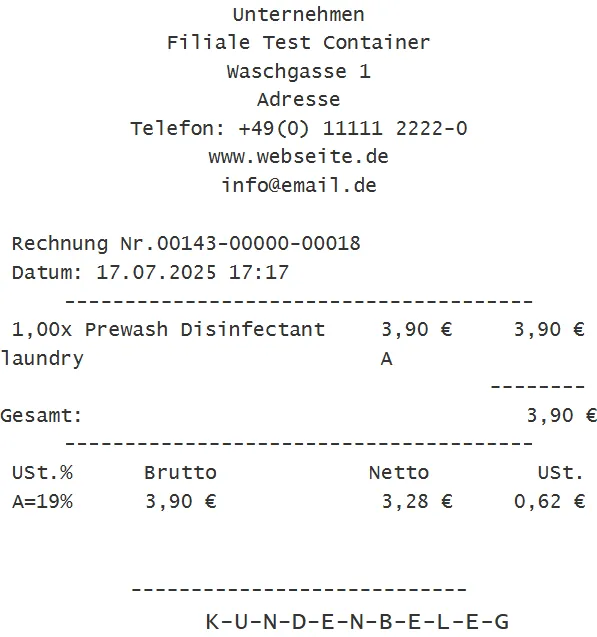
This test ensures the printer is fully operational and correctly configured.