Support Portal
The Support Portal provides a centralized web-based interface for customers, laundry operators, and service personnel to report technical issues, monitor ticket status, and communicate directly with the technical support team.
The portal is designed to simplify and accelerate the support process for incidents related to:
- Washing machines
- Dryers
- Vending Units
- Payment systems
- Detergent dispensers
- RFID / QR-Code systems
- Network or communication issues
- Suggestions for software improvements
The support workflow is integrated with the backend Help Desk system, where tickets are automatically assigned to responsible support specialists.
Accessing the Support Portal
Section titled “Accessing the Support Portal”Users can access the Support Portal through a web browser.
The login page provides:
- User authentication
- Account registration
- Password recovery
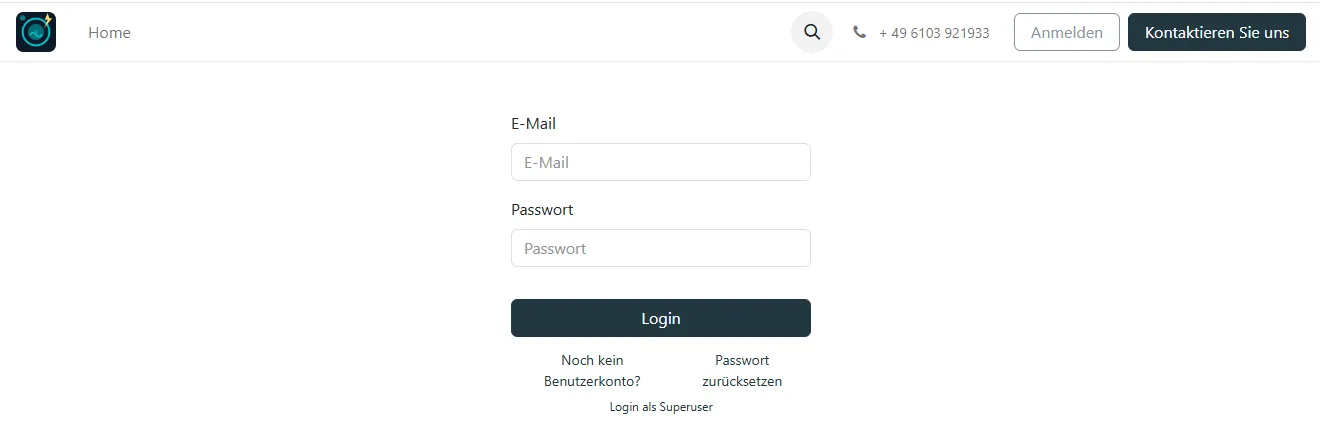
If the user does not yet have an account, the option Noch kein Benutzerkonto? can be used to create a new account.
User Registration
Section titled “User Registration”To create a new support account, the user enters:
- E-Mail address
- User name
- Password
- Password confirmation
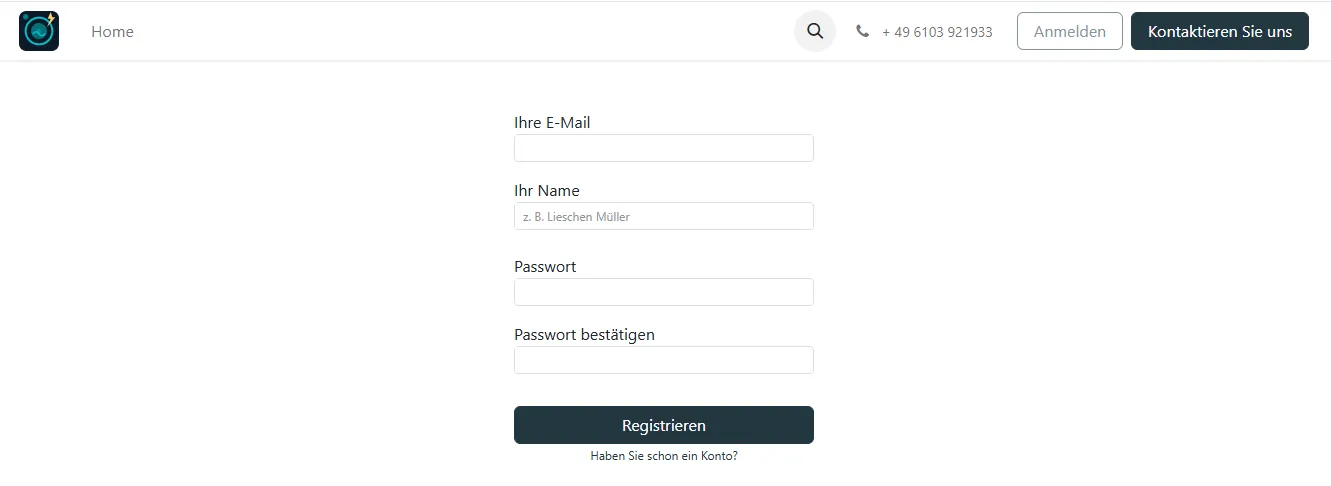
After successful registration, the user receives access to the personal support dashboard.
User Account Dashboard
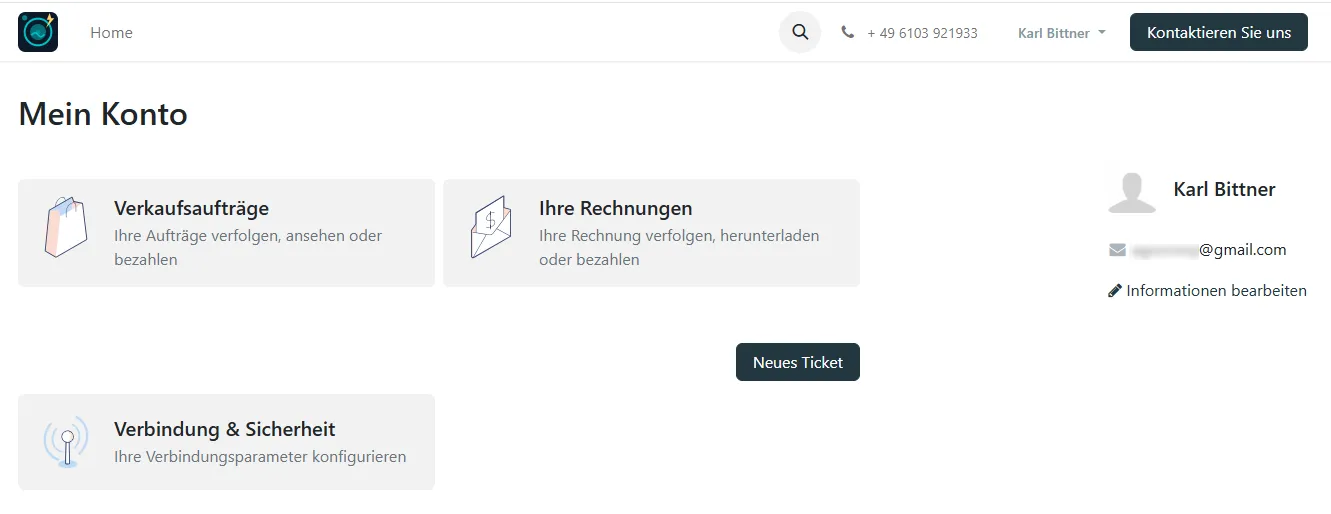
Section titled “User Account Dashboard”The section Mein Konto serves as the central customer dashboard.
From this area users can:
- Create new support requests
- Access ticket history
- View invoices
- View orders
- Configure connection and security settings
- Edit personal profile information
Optional additional customer information may be stored in the user profile, including:
- Company name
- VAT number
- Telephone number
- Address
- Country information
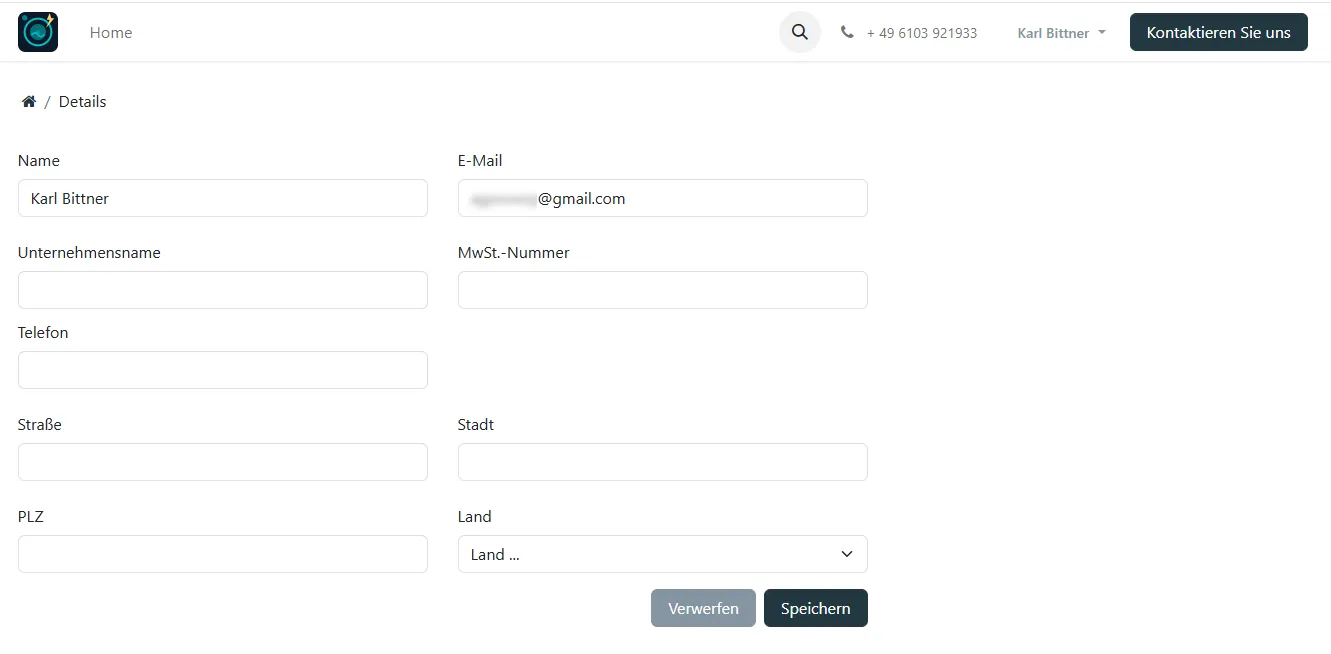
This information helps the support team contact the customer and process requests more efficiently.
Creating a New Ticket
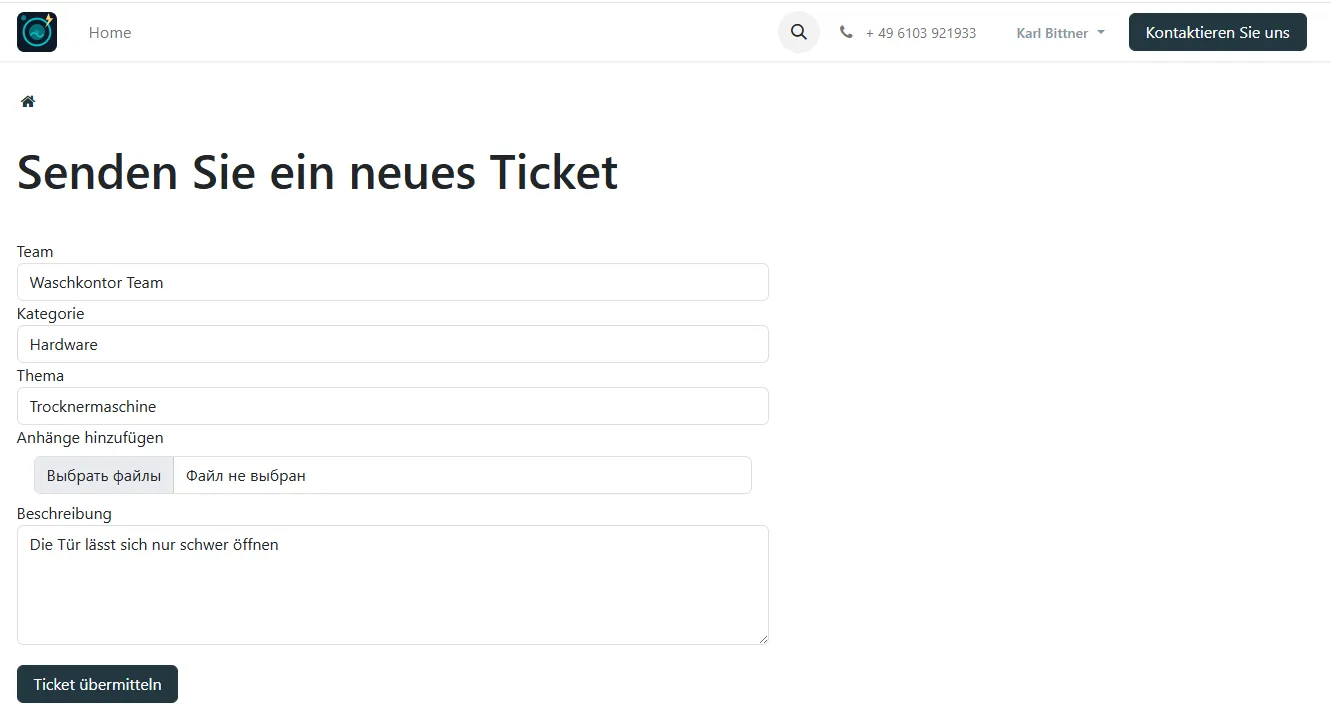
Section titled “Creating a New Ticket”New support requests are created using the button Neues Ticket.
The ticket creation form includes:
- Team selection
- Category
- Subject / topic
- File attachments
- Detailed problem description
Typical ticket categories may include:
- Hardware problems
- Payment issues
- Washing machine or dryer malfunctions
- Connectivity issues
- Software-related incidents
Attachments such as photos, screenshots, or log files may also be uploaded to support diagnostics.
After completing the form, the ticket is submitted using the button Ticket übermitteln.
Automatic Ticket Assignment
Section titled “Automatic Ticket Assignment”Once a ticket has been submitted:
- The request is registered in the backend Help Desk system
- A unique ticket number is generated
- The ticket is automatically assigned to a responsible support employee
- The customer receives status updates and notifications
The ticket number is used for all future communication with support personnel.
Ticket Overview & Tracking
Section titled “Ticket Overview & Tracking”Users can monitor all submitted tickets through the Tickets section.
The overview page displays:
- Ticket number
- Title
- Category
- Status
- Creation date
- Latest status update
- Closing date (if completed)
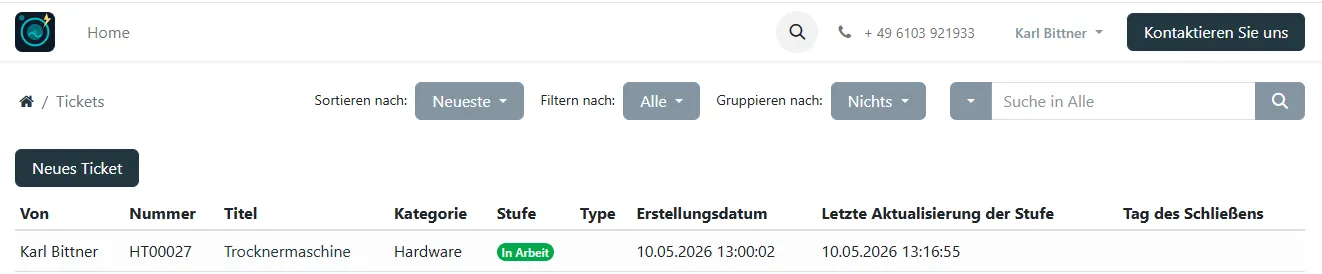
Typical ticket statuses include:
- Neu — newly submitted
- In Arbeit — currently being processed
- Erledigt — completed
- Abgebrochen — canceled
Ticket Details & Communication
Section titled “Ticket Details & Communication”Each ticket contains a detailed overview including:
- Ticket metadata
- Assigned support employee
- Customer information
- Description of the issue
- Attachments
- Status history
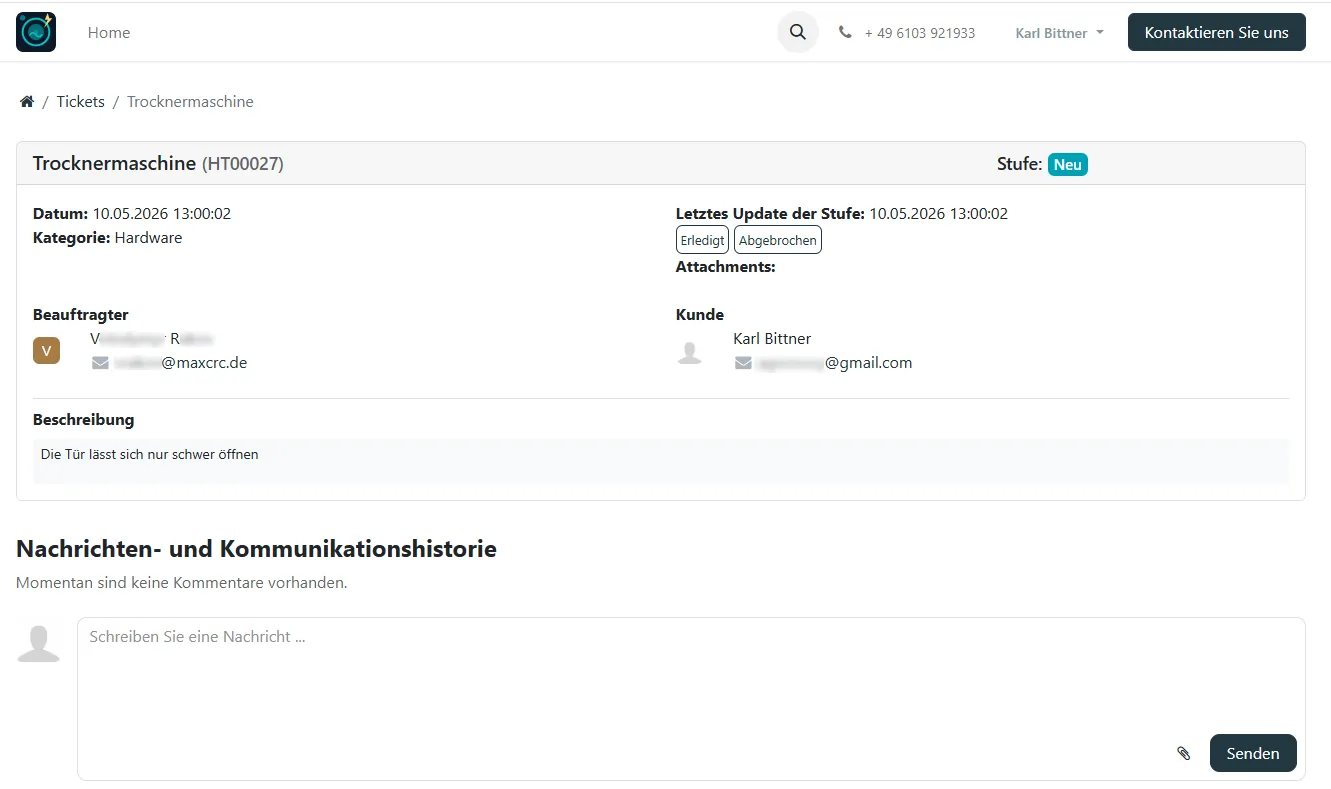
The lower section Nachrichten- und Kommunikationshistorie provides direct communication between the customer and technical support.
Support personnel may:
- Leave comments
- Request additional information
- Provide status updates
- Inform the customer about performed maintenance or repairs
Customers can also respond directly within the ticket.
All important updates and comments may additionally be delivered to the customer via e-mail notifications.
Ticket Resolution
Section titled “Ticket Resolution”After the issue has been resolved, the ticket status changes to Erledigt.
The ticket overview then displays:
- Completion date
- Final processing status
- Communication history
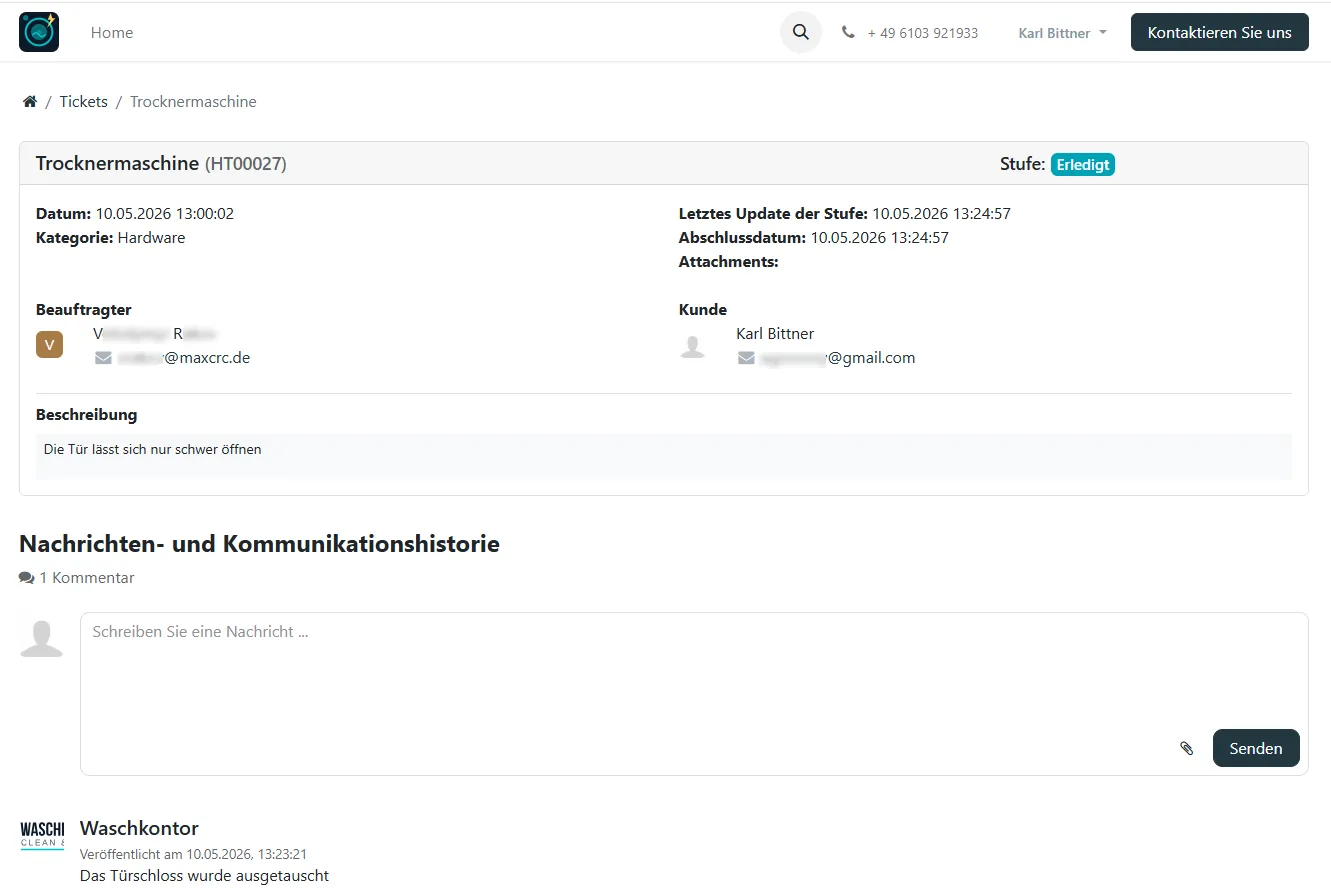
Resolved tickets remain available in the customer account for future reference and service history tracking.
Support Workflow Overview
Section titled “Support Workflow Overview”The complete support process follows these general steps:
- User registers on the Support Portal
- User creates a ticket describing the issue
- Ticket is automatically assigned
- Technical support processes the request
- Customer receives updates and communication
- Issue is resolved and ticket is closed
This structure ensures:
- Transparent communication
- Centralized incident tracking
- Faster response times
- Improved service quality
- Complete ticket history documentation