Working in Service Mode
After a service card has been scanned successfully, the Vending Unit switches to Service Mode. This mode provides maintenance personnel with access to diagnostic tools, service functions, device status information, and operational statistics.
The Service Mode interface consists of several screens, each dedicated to a specific subsystem of the Vending Unit.
Dashboard
Section titled “Dashboard”The Dashboard is the main entry point of the Service Mode.
It displays:
- Current system status
- MQTT broker connection status
- Installed services and their versions
- Language selection
- Statistical information
- Logout button for leaving Service Mode
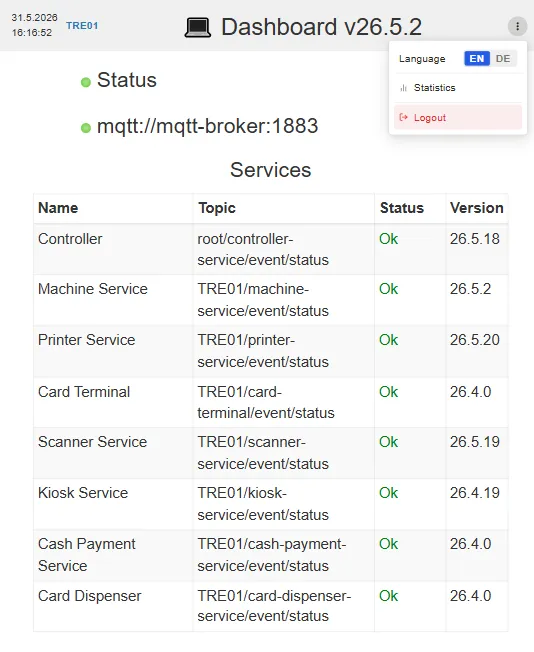
The list of services provides a quick overview of all software components currently running on the Vending Unit.
Controller
Section titled “Controller”The Controller screen displays the status of all internal services managed by the Vending Unit controller.
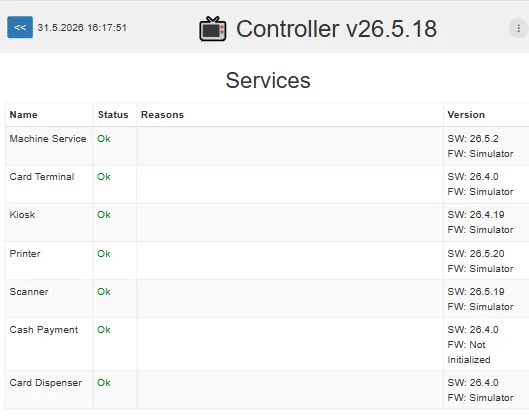
Available services typically include:
- Machine Service
- Card Terminal
- Kiosk Service
- Printer Service
- Scanner Service
- Cash Payment Service
- Card Dispenser Service
For each service, the following information is shown:
- Current status
- Error reason (if any)
- Software version
- Firmware version
This screen is useful for troubleshooting communication and software issues.
Machine Service
Section titled “Machine Service”The Machine Service screen displays all machines connected to the Vending Unit.
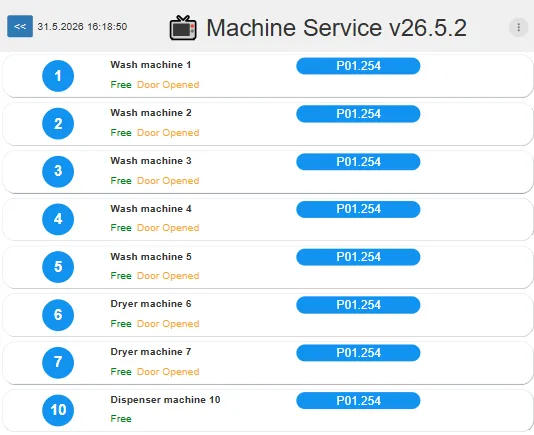
For each machine the following information is available:
- Machine number
- Machine name
- Current status
- Assigned product
- Program currently running
Starting Programs
Section titled “Starting Programs”When a machine is idle, the service technician can manually start a program.
Select the desired machine.
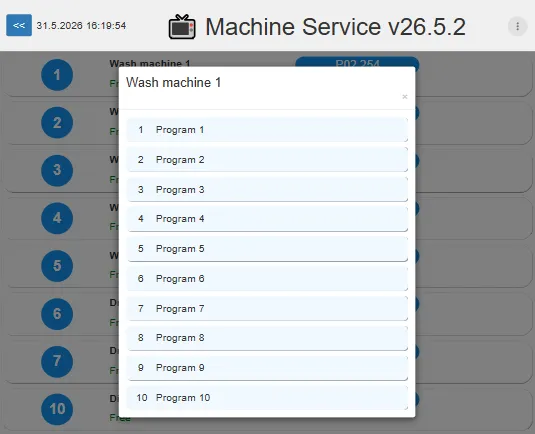
Choose one of the available programs.
The selected program will immediately start on the machine.
Monitoring Active Programs
Section titled “Monitoring Active Programs”When a machine is running, the interface displays:
- Program name
- Remaining time
- Progress bar
- Stop button
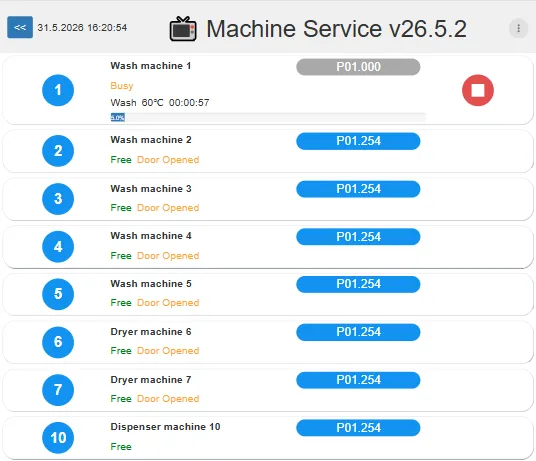
The stop button can be used to terminate the program if required.
Printer Service
Section titled “Printer Service”The Printer Service screen provides diagnostic and testing functions for the receipt printer.
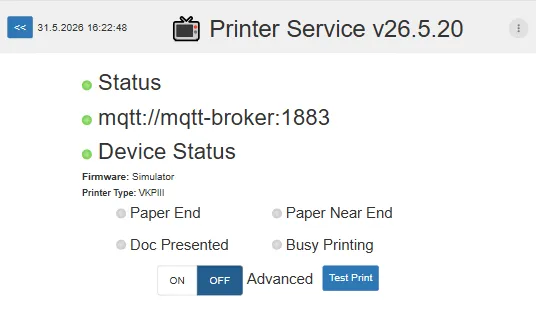
Displayed information includes:
- Printer status
- MQTT connection status
- Device status
- Firmware version
- Printer model
Printer Status Indicators
Section titled “Printer Status Indicators”The following indicators may be displayed:
- Paper End
- Paper Near End
- Document Presented
- Busy Printing
Test Print
Section titled “Test Print”The Test Print button sends a test receipt to the printer.
Advanced Mode
Section titled “Advanced Mode”Advanced mode provides access to receipt source data.
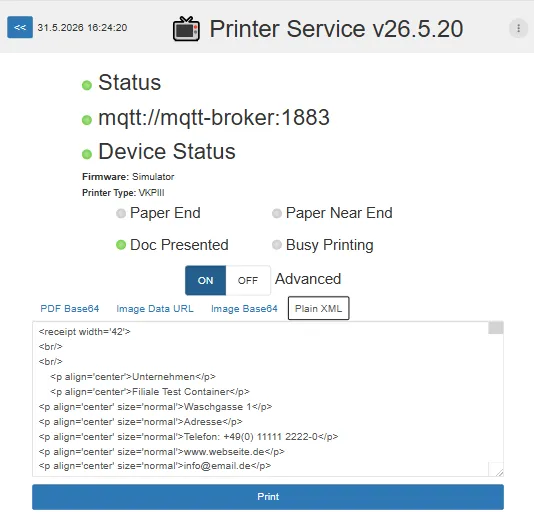
Available formats include:
- PDF Base64
- Image Data URL
- Image Base64
- Plain XML
The receipt preview can be reviewed and printed directly from this screen.
Card Terminal Service
Section titled “Card Terminal Service”The Card Terminal Service screen is used to diagnose and test the card payment terminal.
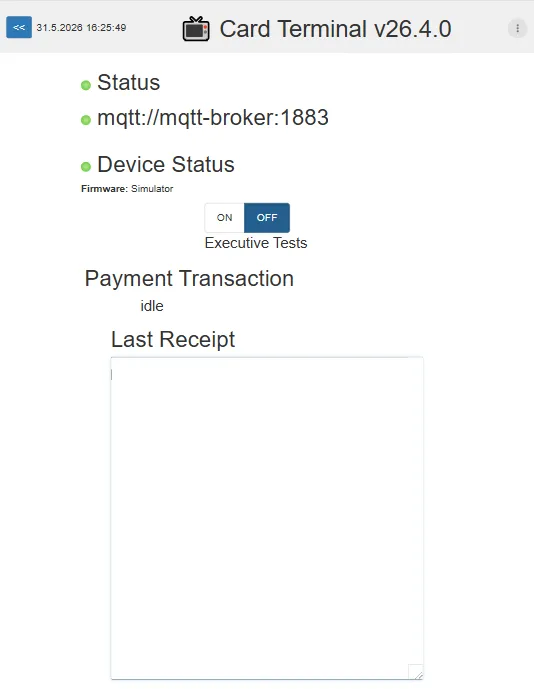
Displayed information includes:
- Terminal status
- MQTT connection status
- Current payment transaction status
- Last receipt received from the terminal
Executive Tests
Section titled “Executive Tests”Executive Tests provide access to maintenance functions.
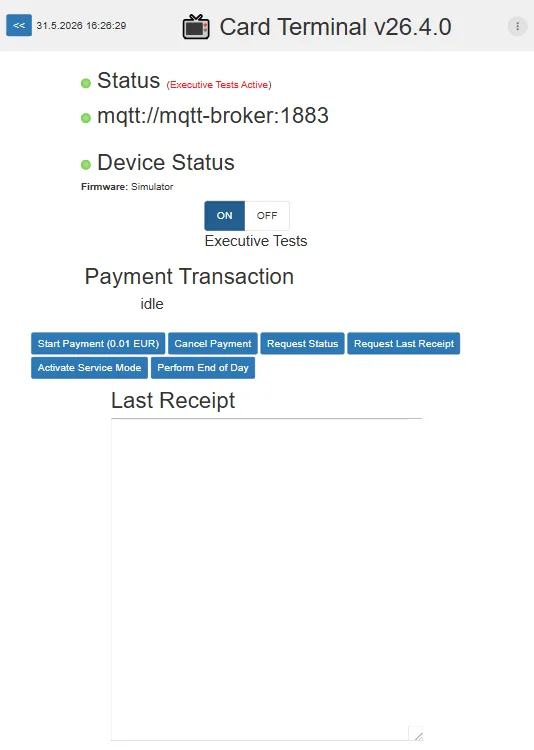
Available actions:
- Start Payment
- Cancel Payment
- Request Status
- Request Last Receipt
- Activate Service Mode
- Perform End of Day
These functions are intended for authorized service personnel only.
Scanner Service
Section titled “Scanner Service”The Scanner Service screen is used to test barcode and RFID scanner functionality.
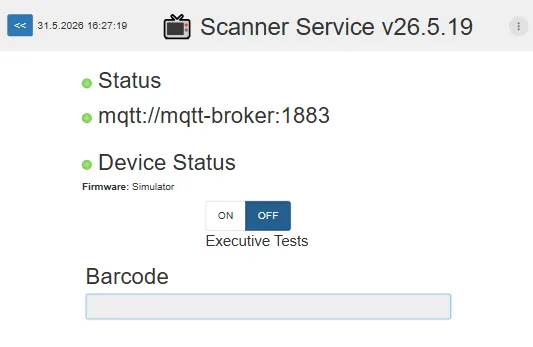
Displayed information includes:
- Scanner status
- MQTT connection status
- Device status
Executive Tests
Section titled “Executive Tests”When Executive Tests are enabled, additional controls become available.
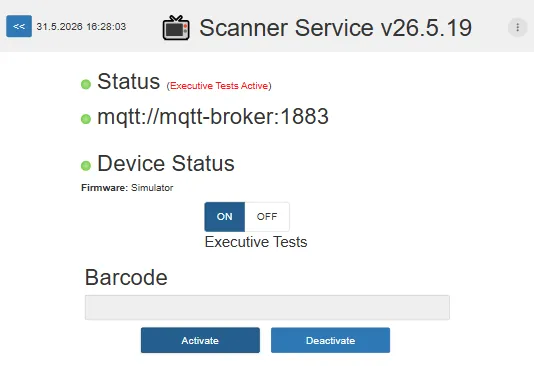
Available actions:
- Activate
- Deactivate
These controls allow testing scanner communication and hardware functionality.
Kiosk Service
Section titled “Kiosk Service”The Kiosk Service screen is used to diagnose and test the kiosk application.
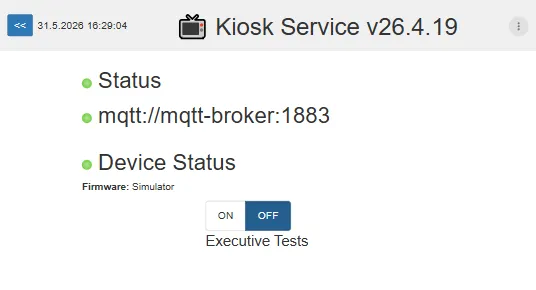
The screen displays:
- Kiosk status
- MQTT connection status
- Device status
Executive Tests
Section titled “Executive Tests”When Executive Tests are enabled, the service technician can change the kiosk URL.
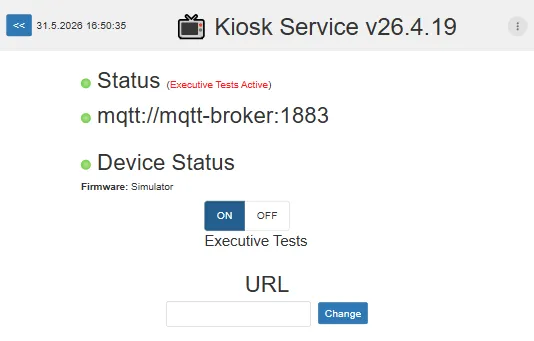
This feature is primarily intended for testing and development environments.
Cash Payment Service
Section titled “Cash Payment Service”The Cash Payment Service screen displays information about all connected cash handling devices.
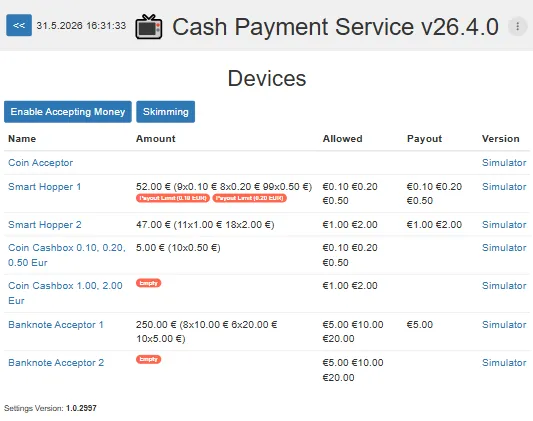
Supported devices may include:
- Coin Acceptors
- Smart Hoppers
- Coin Cashboxes
- Banknote Acceptors
For each device, the following information is displayed:
- Device name
- Current amount
- Allowed denominations
- Payout denominations
- Firmware version
Available actions:
- Enable Accepting Money
- Skimming
This screen is primarily used for diagnostics and cash management.
Card Dispenser Service
Section titled “Card Dispenser Service”The Card Dispenser Service screen provides diagnostics and control functions for the RFID card dispenser.
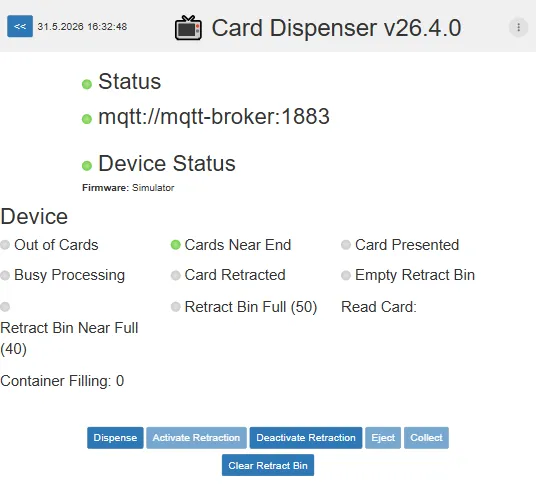
Displayed information includes:
- Device status
- Card availability
- Retract bin status
- Container filling level
- Last card read
Status indicators may include:
- Out of Cards
- Cards Near End
- Card Presented
- Busy Processing
- Card Retracted
- Empty Retract Bin
- Retract Bin Near Full
- Retract Bin Full
Available actions:
- Dispense
- Activate Retraction
- Deactivate Retraction
- Eject
- Collect
- Clear Retract Bin
These functions allow maintenance personnel to test dispenser operation and resolve hardware issues.
Statistics
Section titled “Statistics”The Statistics screen provides access to operational and financial information collected by the Vending Unit.
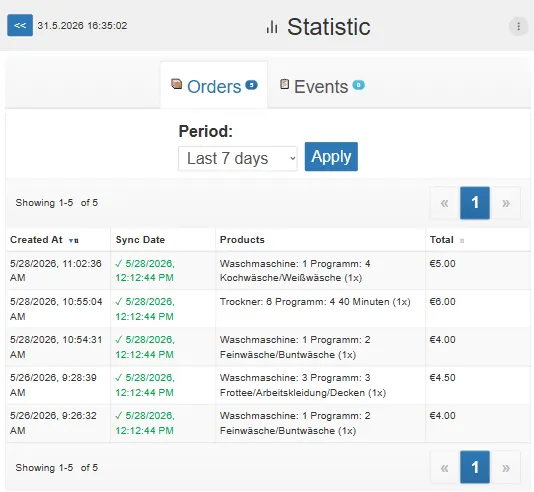
Two sections are available:
- Orders
- Events
Orders
Section titled “Orders”The Orders section displays completed sales transactions.
Available filters:
- Last 24 Hours
- Last 5 Days
- Last 7 Days
- Last 30 Days
- Custom Period
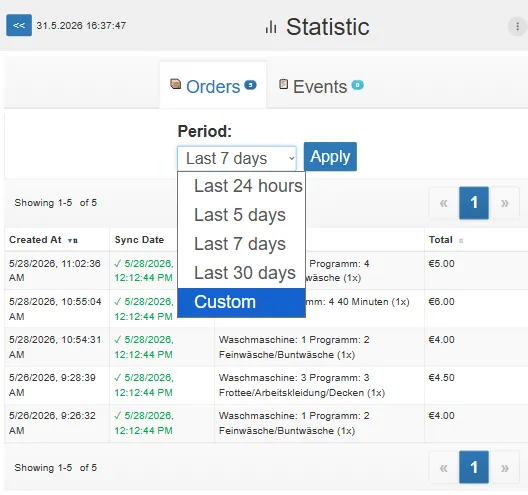
For each order the following information is available:
- Creation date
- Synchronization date
- Purchased products
- Total amount
Order Details
Section titled “Order Details”Selecting an order opens the order details window.
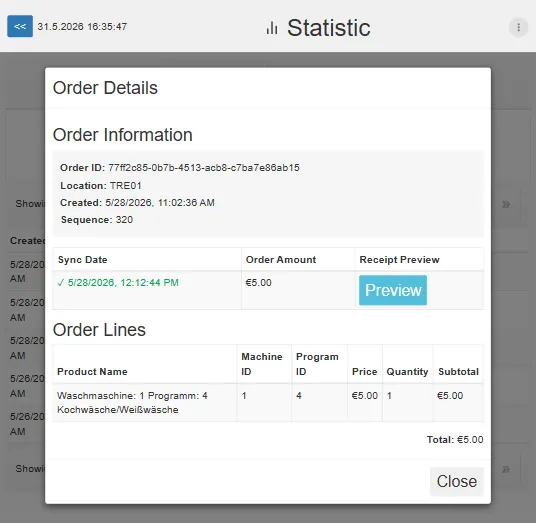
Displayed information includes:
- Order ID
- Location
- Creation date
- Order amount
- Purchased products
- Receipt preview
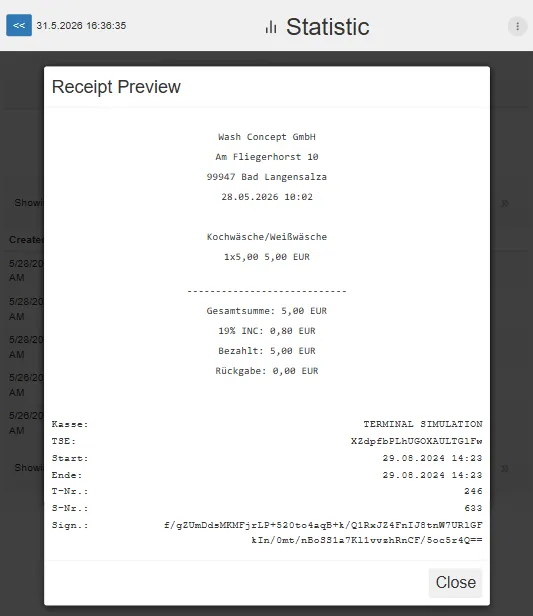
Receipt Preview
Section titled “Receipt Preview”The receipt preview displays the exact receipt generated for the customer.
Events
Section titled “Events”The Events section provides access to machine and system events.
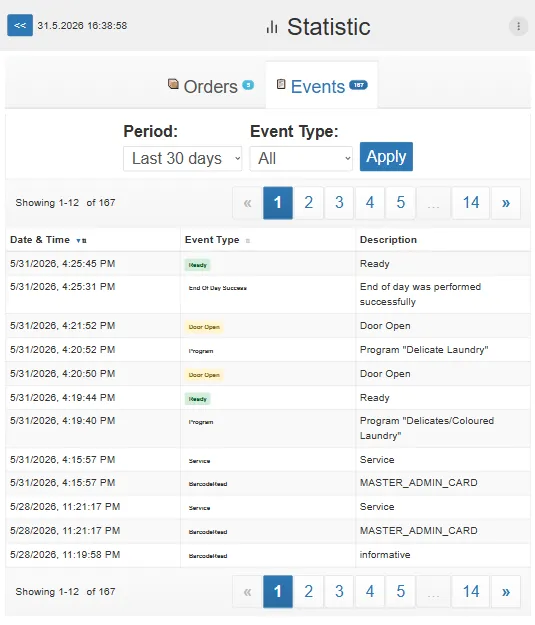
Available filters:
- Period
- Event Type
Typical event types include:
- Ready
- Program
- Door Open
- Service
- Barcode Read
Events are useful for troubleshooting, auditing, and analyzing machine activity.
Event Details
Section titled “Event Details”Selecting an event opens the Event Details window.
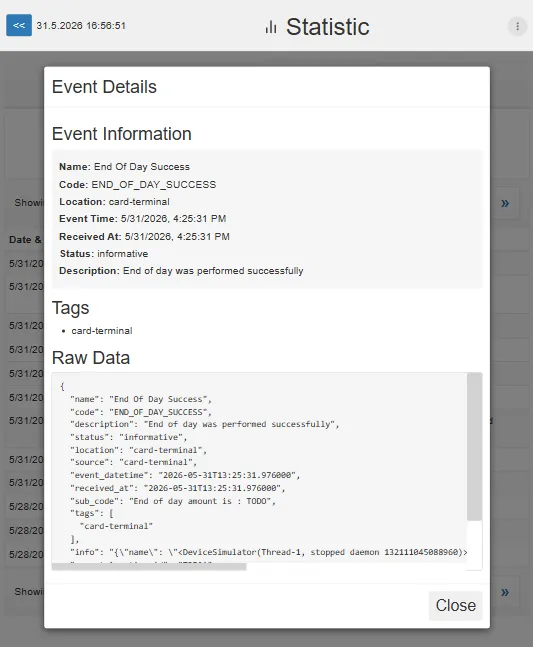
The event details screen provides complete information about the selected event.
The Event Information section includes:
- Event Name
- Event Code
- Source Device or Service
- Event Time
- Receive Time
- Event Status
- Human-readable Description