Scheduled Reports
The Scheduled Reports feature allows the system to automatically generate and distribute sales reports at predefined times. These reports are commonly used to generate the End Of Day Balance Report for different reporting periods.
The reports are generated automatically by the system cron service and sent as PDF files to the configured recipients by e-mail.
The following report types are commonly used:
- End Of Day Balance Report for today
- End Of Day Balance Report for yesterday
- End Of Day Balance Report for a custom time range
The generated reports can also be started manually and downloaded immediately as PDF files.
Opening Scheduled Reports
Section titled “Opening Scheduled Reports”To open the scheduled report configuration:
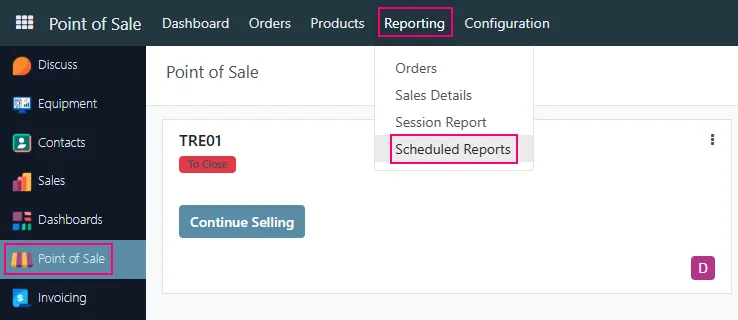
- Open the Point of Sale module.
- Navigate to Reporting → Scheduled Reports.
Scheduled Reports List
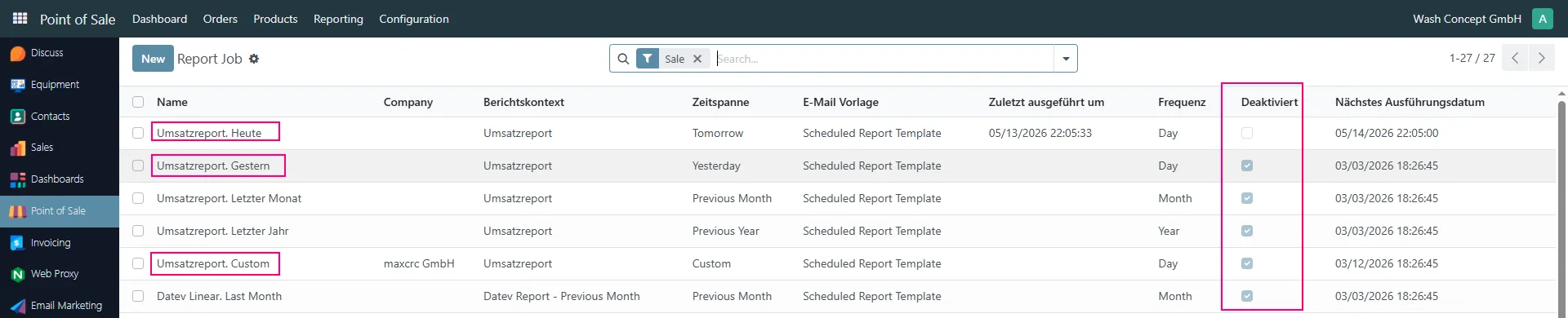
Section titled “Scheduled Reports List”The list view displays all configured scheduled reports.
Important information available directly in the list:
- Report name
- Report context
- Reporting period
- Frequency
- Last execution time
- Next execution date
- Whether the report is active or disabled
Important Notes
Section titled “Important Notes”- Reports with the checkbox in the Deactivated column enabled are disabled and will not be executed automatically.
- Reports without the checkbox enabled are active.
- The Next Execution Date is especially important because it defines when the report will be generated automatically.
- The execution time should normally be configured some time after the end of the business day or work shift to ensure all sales data is included in the report.
Daily Report for Today
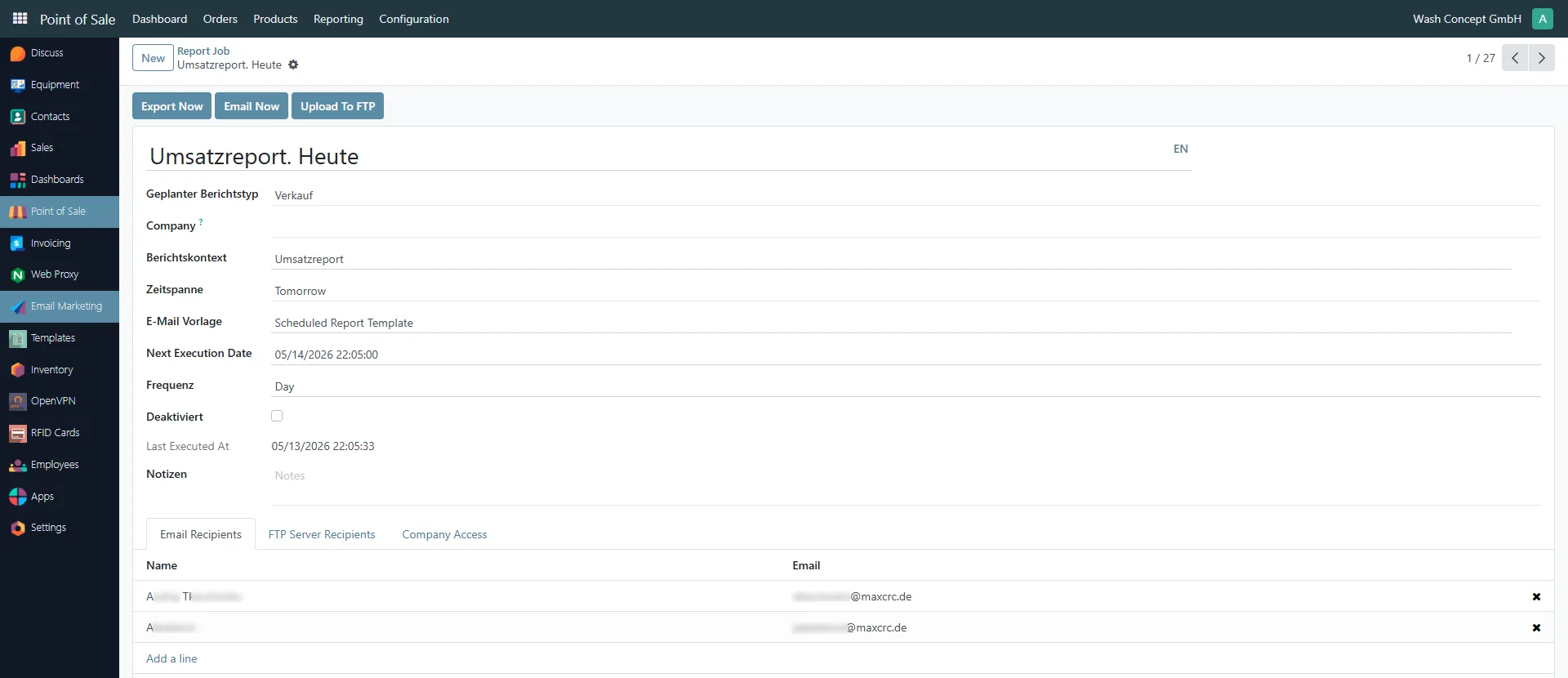
Section titled “Daily Report for Today”The report Sales Report. Today generates an End Of Day Balance Report for the current day.
Scheduled Report Type
Section titled “Scheduled Report Type”Defines the type of scheduled report.
Report Context
Section titled “Report Context”Defines the report template and reporting logic.
Time Span
Section titled “Time Span”Defines the reporting period.
For this report the value is:
- Tomorrow
This means the report is executed on the next day after the sales period is completed.
Next Execution Date
Section titled “Next Execution Date”Defines the next automatic execution date and time.
Frequency
Section titled “Frequency”Defines how often the report is generated automatically.
Typical values:
- Day
- Month
- Year
Deactivated
Section titled “Deactivated”If enabled, the report will not be executed automatically.
E-mail Recipients
Section titled “E-mail Recipients”The Email Recipients tab defines which users receive the generated PDF report by e-mail.
The system cron service automatically generates the PDF file and sends it to all configured recipients once the configured execution time is reached.
Manual Report Execution
Section titled “Manual Report Execution”The report can also be generated manually.
Use the button:
- Export Now
The system immediately generates and downloads the PDF report.
Daily Report for Yesterday
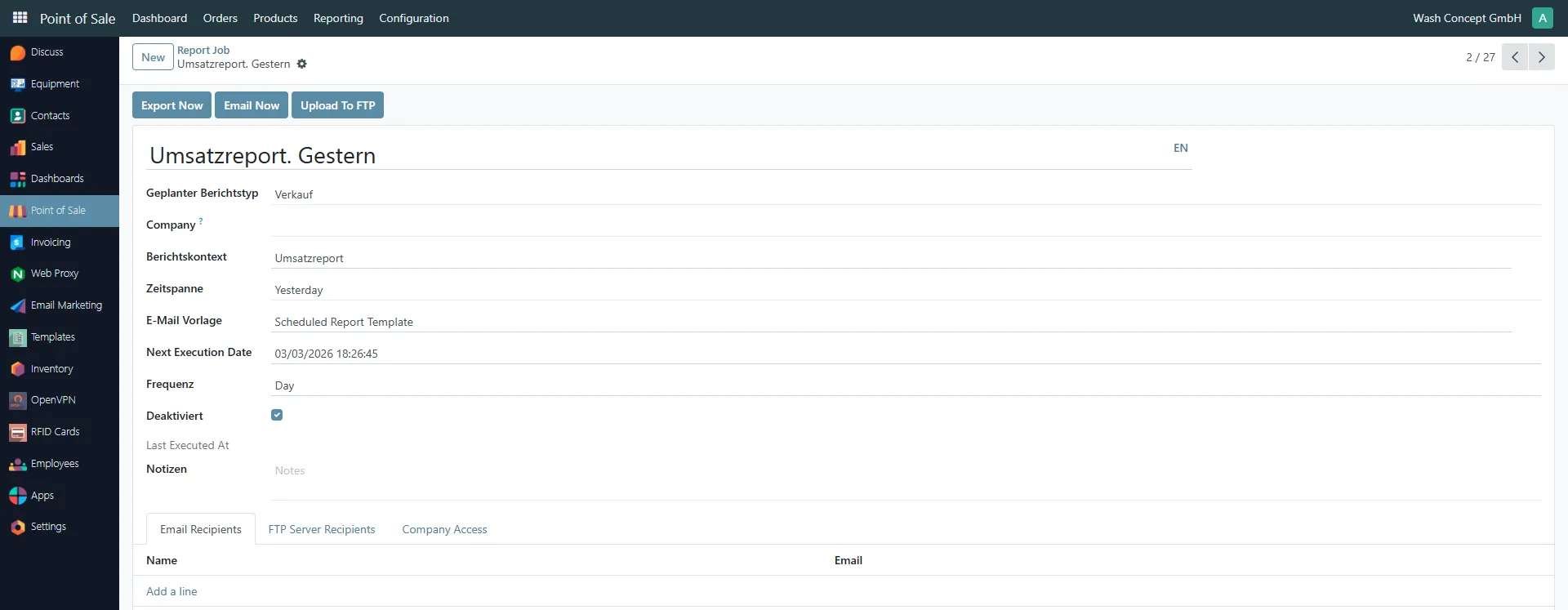
Section titled “Daily Report for Yesterday”The report Sales Report. Yesterday generates a report for the previous day.
Important Difference
Section titled “Important Difference”This report uses the time span:
- Yesterday
This allows generating reports specifically for the previous completed day.
The report can also be disabled if automatic generation is not currently required.
Custom Period Report
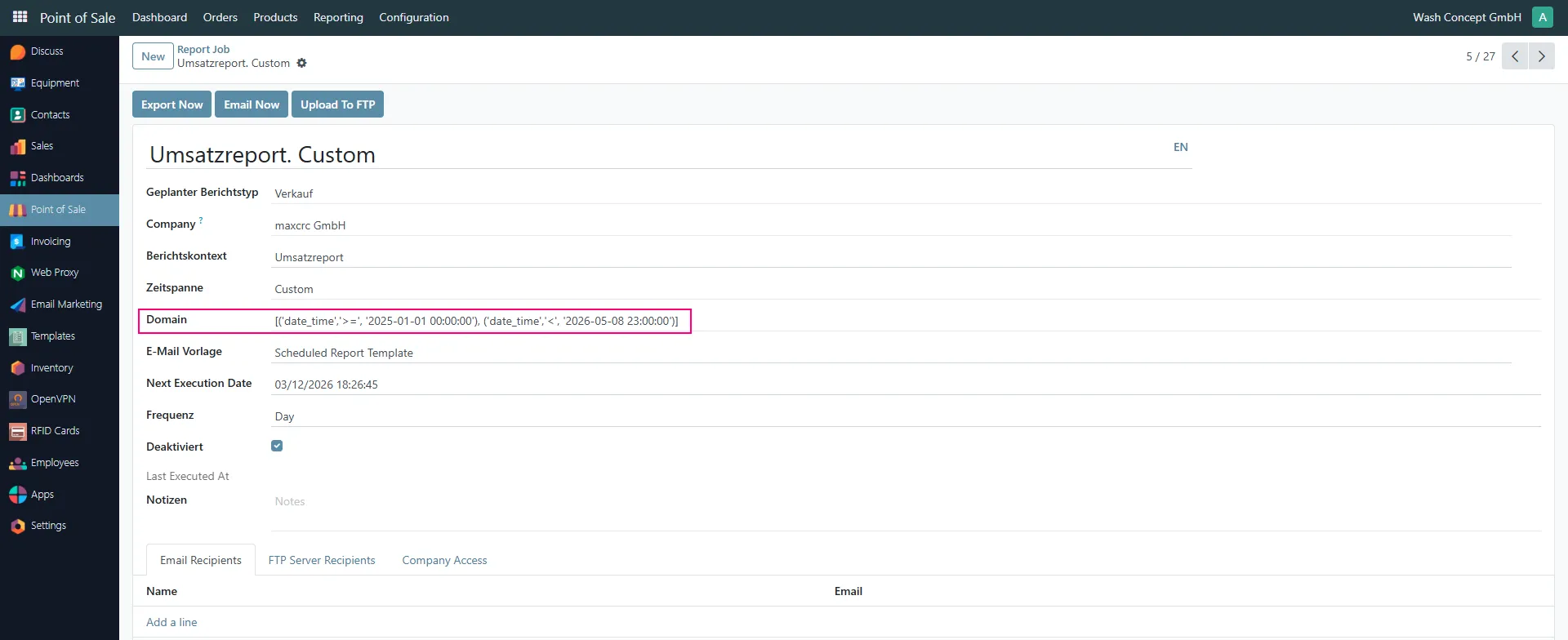
Section titled “Custom Period Report”The report Sales Report. Custom allows generating reports for a manually defined period.
Custom Domain Filter
Section titled “Custom Domain Filter”The custom report contains an additional field:
- Domain
The domain filter defines the exact date and time range used for the report.
Example:
[('date_time','>=','2025-01-01 00:00:00'), ('date_time','<','2026-05-08 23:00:00')]This allows generating reports for completely flexible reporting periods.
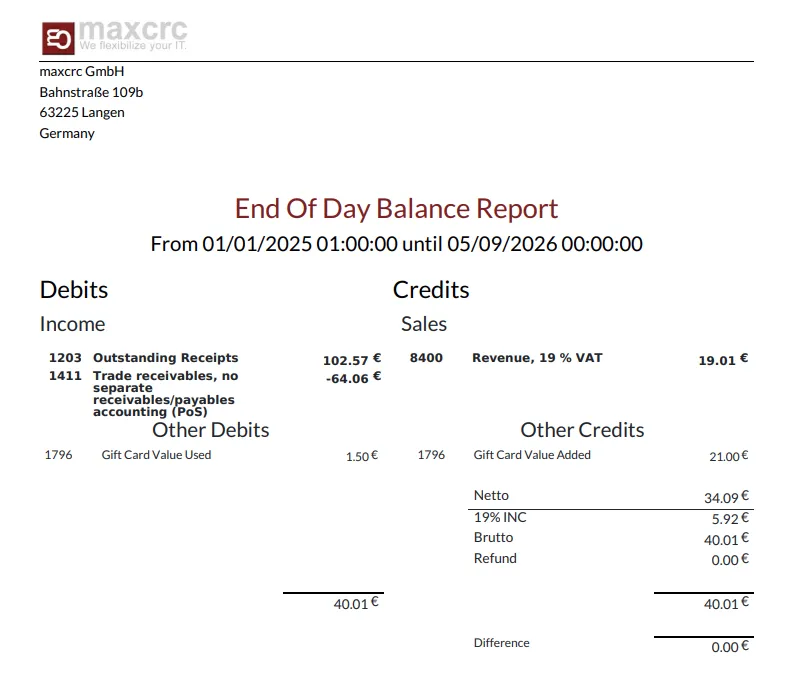
Example PDF Report
Section titled “Example PDF Report”Below is an example of a generated End Of Day Balance Report.
The report contains:
- Income accounts
- Sales values
- VAT calculations
- Debit and credit balances
- Refund information
- Final balance calculations